Part 1: Getting started
1. What Vyuh is, and the safety defaults
Vyuh is a Windows desktop app that runs on your PC. It receives trading signals, mostly TradingView alerts, and turns them into orders at your broker. Each strategy decides what to buy or sell, how much, and when to exit. Vyuh keeps watching the positions it opened: stop-loss, target, trailing stops and time exits.
Two modes: paper and live
- PAPER uses real alerts and real prices with simulated money. Nothing goes to your broker. Every new strategy starts in paper.
- LIVE sends real orders to your broker account. A strategy only trades live when all of these are true:
- the strategy's Mode is Live and saved;
- the master switch Settings → Trading → Live trading is on;
- a broker account is connected and signed in today;
- you are signed in to your Vyuh account and your access allows live entries.
- Paper and live results are always shown apart and never added together.
Safety defaults you can rely on
- New strategies start switched off and in paper. A switched-off strategy ignores alerts: they are recorded in Alerts, but no order is placed.
- Automated entries use LIMIT orders, at the price plus or minus a few ticks. Live market orders go out as protected limits that Vyuh re-prices until filled.
- Live orders are paced at 8 a second, under the exchange's 10-a-second line for retail algos.
- The kill switch, bottom left, stops everything for the day, live and paper, even with Live trading off or no broker signed in. Daily loss limits trip it automatically.
- Exits are never blocked: a stop-loss or exit always goes out, even when entries are stopped or the Live trading switch is off.
- Every action is written to an append-only, tamper-evident Audit log.
- Keys and passwords live only in Windows Credential Manager, never in files.
2. Installing and first start
- Run the installer,
Vyuh_0.2.4_x64-setup.exe, and follow its steps. Your data is kept across updates. - On first start, read the licence terms and the risk statement, tick both boxes and press Accept and continue.
- Vyuh then asks you to sign in with your Vyuh account: your email and password, plus an authenticator code if you use one. You can reset a forgotten password from the sign-in screen. To get access, open Get access. It shows the membership plans and, when open, the free trial of 3 market days (Saturdays, Sundays and market holidays don't count). To buy, press Buy and pay on Easebuzz's page. If you're already on the HFT Indicator Plan or Arko's Strategy Plan, Vyuh is included: don't buy it separately, just ask for your login. For the trial, fill in your name, email and password, press Email me a code and type the code from the email. Your browser then opens a page to check your mobile number by SMS; once that's done, Vyuh starts your trial by itself. One free trial per PC, mobile number, email and broker account.
- The setup wizard opens: broker, TradingView, Telegram, the default instrument, the recovery key and paper mode (next page). You can skip it.
- The Dashboard then opens with a Get started checklist for what's left:
- Create a paper strategy: Strategies → Create strategy.
- Get your webhook URL: Integrations → Tunnel, using ngrok (free) or Cloudflare.
- Send a test alert: Test webhook. This proves the whole path without placing an order.
- Connect Zerodha (or another broker): needed for live prices and live orders. Paper works without it.
- Closing the window keeps Vyuh running in the system tray, so it keeps watching your exits. Quit from the tray icon. It asks first, and counts each, if positions are open, live strategies are on, or live orders, executors, waiting entries or approvals are still working; if it couldn't check its working orders, it says so.
Where things are kept
| What | Where |
|---|---|
| Database, logs, backups, assistant log | Vyuh's data folder in your Windows user profile; Help → Open logs folder opens it |
| Keys, tokens, passwords | Windows Credential Manager only |
| History exports | A Vyuh folder in your Downloads |
| Backups | Vyuh copies the database to backups before each upgrade. Backups are encrypted like the database. To back up yourself, copy the data folder while Vyuh is closed. |
| Trade journals | journals in the data folder |
Database encryption (automatic)
Vyuh encrypts its database, the database's write-ahead log and its backups with SQLCipher (AES-256), on Windows Home and Pro alike. The key is made on the first start and kept only in Windows Credential Manager, never in a file. A database from an earlier version is converted at the first start: Vyuh copies it to backups first, checks the encrypted copy table by table, and only then replaces it. If anything goes wrong, the database stays as it was and Settings → Storage & security says why; Vyuh tries again at the next start.
App lock (optional)
Settings → Security sets an app password (8+ characters), asked at start and after Lock now. You can add an authenticator code. Strategies keep running while Vyuh is locked. If you forget the password, close Vyuh, create an empty file named reset-password in the data folder, and start Vyuh again.
The setup wizard
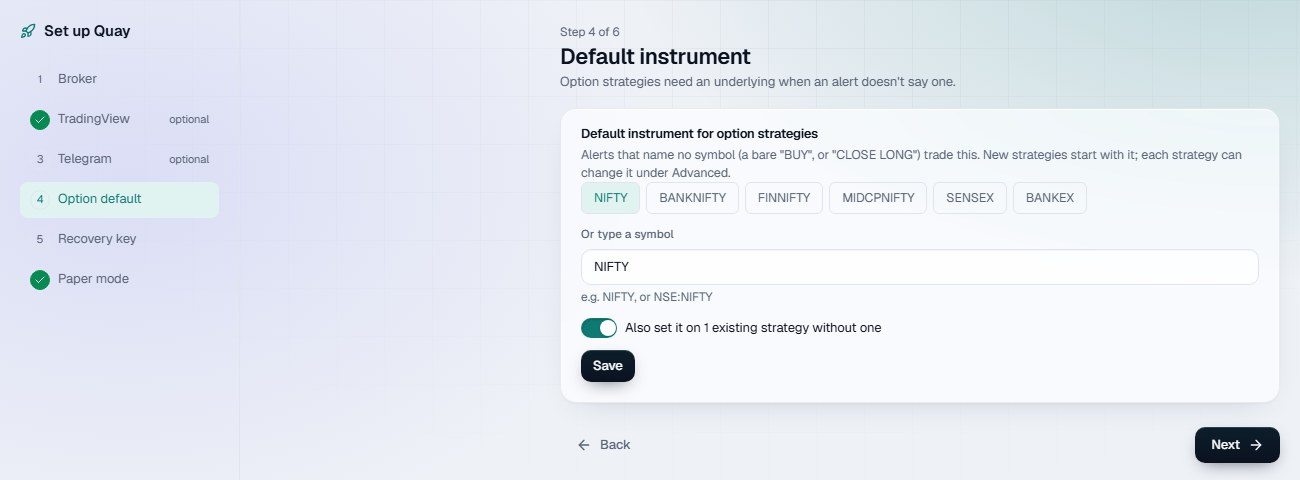
Step 4 of 6. The steps are on the left; a tick means the step is done.
The wizard opens once, after the terms. Each step is a screen you also find elsewhere in Vyuh, so nothing is lost if you skip it. Next and Back move between steps; Skip the wizard (bottom left) closes it. Open it again from Settings → General → Setup wizard → Open the wizard.
| Step | What you do |
|---|---|
| 1. Broker | Add your broker account and sign in, as on Connect. Then press Check this computer's public IP, the same check as on Connect: it shows this computer's public IP and names any account whose Static IP registered with the broker doesn't match it or is empty (SEBI's rule for API orders). Paper trading works without a broker. |
| 2. TradingView (optional) | Start the tunnel (ngrok or Cloudflare) for your public webhook URL. Needs a paid TradingView plan with 2-factor sign-in. |
| 3. Telegram (optional) | Paste your bot's token from @BotFather, then find your chat: fills, errors and the morning ready check on your phone. |
| 4. Option default (optional) | Each strategy keeps its own instrument; this is only the one new strategies start with, and the one strategies without their own use. The default instrument for option strategies (NIFTY, BANKNIFTY, FINNIFTY, MIDCPNIFTY, SENSEX, BANKEX, or type one). Alerts that name no symbol (a bare BUY or CLOSE LONG) trade it. New strategies start with it; Also set it on existing strategies without one fills the gaps. Press Save. |
| 5. Recovery key | Press Export recovery key: 56 letters and digits that open your encrypted database if this computer loses its key. Save them away from this computer, then press I've saved it. |
| 6. Paper mode | Shows whether live trading is on. Off: paper only is the start; Turn live trading on… asks to confirm, and Turn live trading off goes back. Going live later needs the Live switch, a strategy set to Live, and a signed-in account on its registered static IP. |
3. The screen: sidebar, top bar, kill switch
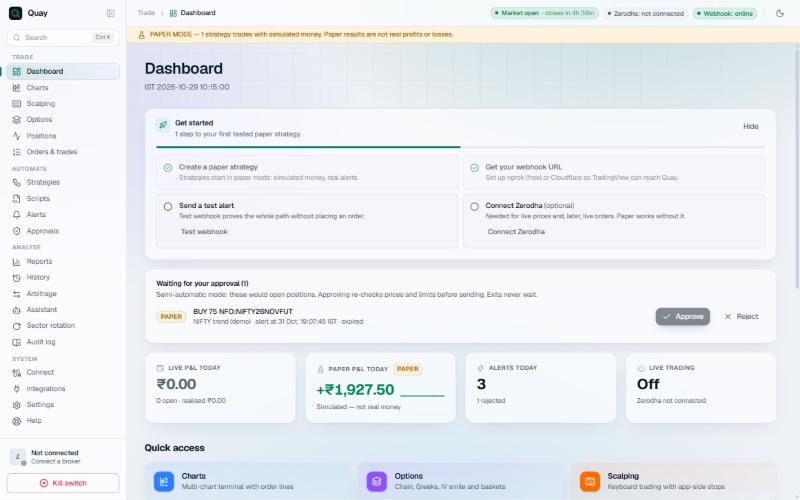
The Dashboard, with the sidebar on the left and the top bar above.
Sidebar
| Group | Tabs |
|---|---|
| Trade | Dashboard, Charts, Scalping, Options, Positions, Orders & trades |
| Automate | Strategies, Scripts, Alerts, Approvals |
| Analyse | Reports, History, Arbitrage, Assistant, Sector rotation, Audit log |
| System | Connect, Integrations, Settings, Help |
- Search (Ctrl+K) at the top jumps to any screen.
- Bottom left: your broker account chip (opens Connect): the default account when it's signed in, else the account that is (such as the one your prices come from) with a note that the default isn't. The top bar shows a green pill for each signed-in account and an amber one when the default account isn't signed in, since manual, scalping and AI orders go to the default. Then Sign out of your Vyuh account (it asks first; new live entries pause until you sign in again, open positions and their exits keep running) and the red Kill switch.
- Kill switch: stops live and paper trading for the day, even with Live trading off or no broker signed in: no new entries, Vyuh's working orders cancelled, its positions squared off. Each mode gets its own message ("exits sent"), and anything it couldn't cancel or close is listed, so you can do it at your broker. Reset it per mode on the Dashboard's Safety card, which asks first. It and other buttons, such as One-Click orders, work even while Windows reports no network; they never wait to get online.
Top bar
- Tabs (left): each screen you open, like a browser's. A sidebar click shows the screen in the tab you're on; Ctrl+click or middle-click opens it in a new tab, as does +. Each tab keeps its state (zoom, scroll, the chain's place) while you're in another. Ctrl+Tab and Ctrl+Shift+Tab switch, Ctrl+W or the × closes. A screen is open in one place at a time: asking for one that's open elsewhere switches to it.
- New window: the window icon on a tab moves it to a window of its own, for a second monitor. Every window shows the same live prices, orders and positions, and each window's charts stay live; closing one closes just it (the main window still hides to the tray). Quit prompts and approvals show in the main window only; engine notices show in every window. Each window remembers its tabs.
- Market phase with a countdown (pre-open, open, closes in…).
- Broker pills: a green pill for each signed-in account (broker and client id), and an amber one when your default account isn't signed in; click to open Connect.
- Webhook pill: whether the tunnel is online; click it to open Integrations.
- LIVE TRADING ON appears while the live master switch is on.
- A light/dark toggle.
A red licence banner shows only when new live entries are paused by the licence check, for example when Vyuh hasn't reached the licence server for more than 48 hours. Paper trading and exits keep working. See Settings: licence checks.
A red PRICES FROM BACKUP banner shows while prices come from your backup feed (see Brokers), with Switch back. Orders still go to your trading accounts.
4. Your daily routine
Before the market opens (by 09:10 IST)
- Start Vyuh, or check it's in the tray.
- Sign in to your broker. Zerodha sessions end at 06:00 IST every day, so press Sign in with Zerodha on Connect. Some brokers need a daily token or approval instead (see Connect).
- Check the top bar: broker connected and Webhook online, and no red PRICES FROM BACKUP banner. If you use a separate market-data account or a backup feed, sign in to those too.
- On the Dashboard, check each mode's Safety card says Entries allowed.
- Switch on the strategies you want to run today (Strategies, the switch on each card). Option-leg strategies should be on a few minutes before 09:15, so Vyuh can load the prices of the strikes around ATM.
During the day
- Watch Alerts (every signal and what Vyuh did), Positions and Orders & trades.
- In semi-automatic mode, approve or reject waiting entries on the Dashboard or in Approvals.
- If the red backup banner appears, the main feed went quiet for 30 s or its session ended. Fix or re-sign in the main account, then press Switch back.
- Keep Vyuh running: Vyuh itself watches stops and targets, so they only work while it runs and gets prices. For extra protection on Zerodha, see "Keep the stop-loss at the broker" under Strategies.
After the close
- Check Reports for the day's results by strategy. Ask the assistant to "export today's journal" to keep a written record.
- MIS positions square off at the MIS time (default 15:15; MCX positions at 23:00); index contracts expiring today exit at the expiry-day time (default 15:30).
- Leave Vyuh running if you carry NRML positions overnight. Stops, targets and trails carry on after a restart.
Part 2: Placing trades
5. The five ways to place a trade
| Way | Where | Best for |
|---|---|---|
| 1. Alerts | Strategies + Integrations | Automated trading from TradingView, GoCharting, Chartink and others: the main way |
| 2. By hand | Charts, Scalping, Options builder, Positions | Discretionary trades, quick scalps, option baskets, exits |
| 3. Assistant | Assistant tab, Telegram | "Buy 1 lot NIFTY ATM call, paper": every order is a card you approve |
| 4. Your programs | Settings → Local API, Scripts → Python | Python, Excel, AmiBroker, MetaTrader 5, n8n |
| 5. AI apps on this PC | Settings → AI assistants (MCP) | Claude Desktop, Claude Code, Cursor requesting orders you approve |
Whatever the way, every order passes the same checks: the kill switch, the live master switch, the risk limits, and the approval if semi-automatic mode is on. Every order is also recorded in Orders & trades and in the Audit log.
How an alert becomes an order
- The alert arrives at your public webhook URL (the tunnel) and reaches Vyuh on your PC.
- Vyuh checks the strategy's key, the alert's age (older than 60 s is refused), repeats (the same alert again is a duplicate) and the rate.
- It checks the strategy: switched on, inside its entry window, trades per day, daily loss, kill switch, market open.
- It works out the instrument: the alert's symbol through Symbol mapping, the strategy's Underlying (when the alert names none), or its option legs (ATM / ITM / OTM, premium ≥ X …).
- It sends only the difference between what you hold and what the signal wants (long, short or flat), as a LIMIT order, paper or live. An entry order still working counts as held, so a repeated alert doesn't enter twice.
- Each strategy's signals are handled one at a time, in order, in the strategy's own queue, so a busy strategy never holds up another. Up to 32 can wait; more are refused as "engine busy".
- An alert that waited more than 60 s opens nothing new (its exit part still goes) and sets up no Wait & Trade entry.
- A reversal (long to short, or back) always sends its closing half, even when the new side is refused (licence, Live trading off, kill switch, entry window, trade limits, the largest order value). The alert shows a note and a warning.
- Fills update the position. Stop-loss, target, trailing and time exits take over, and you get a notice (Telegram, WhatsApp or desktop, if set up).
6. From TradingView alerts, step by step
- Create a strategy (Strategies, left column):
- type a name;
- pick the kind: Signal-driven acts on alerts, Multi-leg batch enters on start;
- pick the instrument group and underlying;
- pick Positional or Intraday;
- press Create strategy. It starts switched off and in paper.
- Check its settings in the form:
- Underlying (e.g. NIFTY), Lots, Product (NRML, MIS or CNC);
- the legs, their expiry and strike rules;
- stop-loss, target, trailing;
- then press Save.
- Start the tunnel (Integrations → Tunnel) and wait for Online.
- Copy the URL: in the strategy's Signals card, press Copy beside the webhook URL. It copies
https://…/h/<id>?key=…, the strategy's one address, with its key, so the alert message never needs one. Treat it like a password. - In TradingView, create an alert on your script or strategy:
- tick Webhook URL and paste the URL;
- keep the message your script sends (BUY, SELL, CLOSE LONG …), or use the JSON message from Integrations → Signal sources.
- Test the path: press Test next to the URL (no order is placed).
- Run in paper: switch the strategy on while it's in paper, and wait for a real signal.
- Check every screen: Alerts (accepted, with what Vyuh did), Orders & trades (a LIMIT order), Positions (with its stop), Audit log (
order.placed), and Telegram (the fill message, if set up). - Exit: send or wait for
CLOSE LONG: Normal Exit; the position closes.
Messages your script can send
| Message | What Vyuh does |
|---|---|
BUY / buy / long | Go long (closing a short first) |
SELL / sell / short | Go short if the strategy allows shorts (closing a long first, even with no CLOSE LONG in between), else just close the long |
CLOSE LONG: … | Close only a long |
CLOSE SHORT: … | Close only a short (while long, it changes nothing) |
exit / close | Close this strategy's position in the alert's instrument |
EXIT ALL | Close every open position of this strategy |
test | Recorded only; never trades |
7. Testing alerts when the market is closed
On weekends and holidays Vyuh normally refuses all orders, paper included. To test the whole path on a closed day:
- Settings → Trading: set Paper orders when the market is closed to On, and save. This never applies to live.
- Strategies: create a strategy named
TV test, group Stocks, symbolINFY, Positional. It starts off, in paper, as CNC. Set Lots to 1, switch it on, and save. - Copy the URL: press Copy beside the webhook URL. Without the tunnel it copies the local address
http://127.0.0.1:47321/h/…?key=…, which works from this PC. - Send the alert TradingView would send, from PowerShell:
$url  = '<URL with key>'
$body = @{ action='buy'; symbol='INFY'; exchange='NSE'; price='1500'; id='T1';
           ts=(Get-Date).ToUniversalTime().ToString('o') } | ConvertTo-Json
Invoke-RestMethod -Method Post -Uri $url -Body $body -ContentType 'application/json'
- Run the last line again within 10 s: Alerts shows a Duplicate, with no second order.
- Check Alerts, Orders & trades (filled at the alert's price), Positions and the Audit log.
- To exit, send
action='sell'withid='T2', rebuilding$bodyso it gets a new time. - Afterwards, set the closed-day switch back to Off.
The JSON message (TradingView strategies)
{
  "action": "{{strategy.order.action}}", "symbol": "{{ticker}}",
  "exchange": "{{exchange}}", "price": "{{close}}", "qty": "{{strategy.order.contracts}}",
  "position": "{{strategy.market_position}}", "id": "{{strategy.order.id}}", "ts": "{{timenow}}"
}
positionwins overactionwhen present.qtyis used only if the strategy's "Quantity from the alert" is set, and never above its lots.- Simple text also works:
key=…;action=buy;symbol=INFY.
8. By hand: Charts, Scalping, Options, Positions
Charts
Each chart has BUY and SELL buttons; the BUY/SELL switch in the trade strip below hides or shows them on every chart. The strip also sets the mode, Product and Lots, and has a One-click switch (live asks first). Orders and positions show as lines on the chart. Indices are quote only, and stop orders can't be placed from the chart.
Scalping
- Pick Options, the underlying, expiry and the CE and PE strikes (they start at the money, then stay put as the market moves), or Futures, or search Any instrument.
- On the order ticket set Lots, MIS or NRML, Market or Limit at LTP, and the SL, Target and Trail every scalp gets.
- Press Buy Call, Buy Put, Sell Call or Sell Put. With One-Click on, orders go at once and the keys work: ↑ ↓ → ←, F6 close all, F7 cancel all orders.
One-Click off means every order asks first. Turning it on in live asks to confirm, and switching mode turns it off. Scalping uses the default broker account.
Options builder
- Options → Chain: add legs with each strike's buy/sell buttons, or from the Strategy Library (Bull Call Spread, Iron Condor, Short Straddle and 39 more).
- Check Payoff, Greeks, the P&L table and Margin (with the hedge benefit). Try the what-if sliders: spot, IV, days.
- Pick Product and Mode, then press Execute (paper) or Execute LIVE (asks to confirm).
Exits from Positions
- Each row has Exit (asks first), a chart, and a levels sheet to change its stop-loss or target.
- Close positions closes one strategy; Close all open positions closes everything in the mode shown.
9. Through the Assistant and Telegram
Assistant (Analyse → Assistant)
Ask in plain words, typed or spoken: "What are my open paper positions?", "Buy 1 lot NIFTY ATM call, paper", "Close 10% of my NIFTY position".
With no AI model connected, the built-in assistant answers short commands from Vyuh's own data, with no key or account: "summary", "greeks", "chain nifty", "buy 1 lot nifty atm ce mis", "alert me if banknifty above 52000 on telegram". Type help for the list, or press a quick button under the chat. For questions in your own words, connect a model: your own Claude API key, a local model, or Claude Desktop. See Assistant: connecting an AI model.
- Every order is a card: PAPER or LIVE, contract, lots × lot size, LIMIT price, value, margin, charges and the order tag. You press Approve or Reject; Vyuh's risk guard checks it again after you approve.
- Paper is the default. Orders are LIMIT at the last price unless you say "market".
- It also answers facts:
- performance by strategy, day or underlying;
- portfolio Greeks with a what-if table;
- option-chain summary (PCR, max pain, OI);
- futures basis; the market calendar;
- a tax summary (a guide, not tax advice); slippage; comparing two symbols; sector rotation;
- "will my alert trade?" for a strategy, and a retail-algo check of your accounts (static IP, algo ID, and today's live orders with and without Vyuh's order tag);
- the audit log; latency per broker; order pacing and the brokers' "too many requests" refusals;
- option positions near expiry, in facts (distance from spot, in or out of the money);
- "what if I'd exited at 2 pm?"; progress against a monthly target; your return beside NIFTY's.
- It can pause or resume a strategy, change its stop or target, or press the kill switch, always through a card. It can never switch a live strategy on, change settings or keys, or approve its own requests.
- It also asks on a card before creating or deleting a watch, saving or forgetting a preference, and sending a message beyond this PC (Telegram or WhatsApp); desktop notifications don't ask. The card shows the full message or watch note, and whether it repeats or adds the day's summary.
- "Remember my usual is 2 lots BANKNIFTY straddle" saves a preference. See them, and forget them, in Settings → AI assistants.
- "Export today's journal" saves the conversation, today's trades and P&L, and your notes as a Markdown file in the
journalsfolder. A second export the same day makes a new file instead of overwriting. - It can answer in English, Hindi, Bengali, Tamil, Telugu, Marathi, Gujarati, Kannada, Malayalam or Punjabi (Answer in, in its settings).
- It never recommends what to buy or sell, which strike, or when to enter.
Telegram (your own bot)
Set it up in Integrations → Telegram, with "Answer bot commands" on. Commands, buttons and questions work only from you, in a private chat with your bot; a group chat gets notifications only.
| Send | Get |
|---|---|
/positions /orders /funds /pnl /holdings | Instant answers |
/chart NSE:INFY 5m | A candle chart image |
| A question in plain words | The assistant answers, with read-only access (without an AI model: a built-in command such as "greeks" or "chain nifty") |
/approvals | Waiting requests with buttons. Reject any; approve paper ones (live only in Vyuh) |
/ready | Would each switched-on strategy's alerts trade today, and what to fix |
/kill, then /kill confirm within a minute | The kill switch for today, paper and live; the reply lists anything it couldn't cancel or square off |
10. From your own programs
Settings → Local API opens an API on this PC only (127.0.0.1, port 47322), never on the internet.
- Switch it on and press Copy key, then store the key in the
QUAY_API_KEYenvironment variable. - Turn on Allow orders only if your program should trade. Signals to
/v1/signalneed it too. - Reads: strategies, positions, orders, tradebook, alerts, funds, holdings, quotes, depth, option chain, history.
- Orders: order, smart order, basket, modify, cancel, close position, plus GTT at brokers that offer it (see Orders & trades).
- Streaming: a WebSocket at
/v1/stream. - Every order still passes the kill switch, the live switch and the limits, and is audited.
- A modify is refused while the kill switch is on. One that adds risk passes the same checks as a new order; in semi-automatic mode a program can't add risk by modifying.
- GTT legs must be whole lots, within the freeze quantity and under Live: largest order value.
Python
Vyuh's Python client is the module quay_client, with the class Quay. Both keep that name so existing scripts go on working.
setx QUAY_API_KEY "<key>"
from quay_client import Quay
quay = Quay()
quay.buy("My strategy", "INFY", price=1500.5)     # a signal to a strategy
Scripts → Python strategies runs your Python strategies inside Vyuh:
- a schedule, restart after a crash, a memory limit and secrets;
- an optional sandbox: Low integrity (writes only in its
workfolder; one runs at a time) or Isolated (its own container and folder only, no internet, and Vyuh's API through a private pipe). Both need Python from python.org, not the Microsoft Store.
Others
- AmiBroker: post
key=…;action=buy;symbol=SBINtohttp://127.0.0.1:47321/h/<id>(formula in Settings → Local API). - Excel: a VBA snippet posts to
/v1/signal. - n8n, Make, Zapier, Google Sheets: POST JSON to the public URL.
- MetaTrader 5: WebRequest to
/v1/signal. - Chartink: its own URL per action, with its own key.
11. Going live with one lot
- Connect your broker and sign in today. Register your static public IP with the broker: SEBI's retail-algo rules (in force for all brokers from 1 April 2026) refuse API orders from other addresses. Enter it on the account (Static IP registered with the broker), then press Check this computer's public IP under Connect → Static IP, or in the wizard's broker step.
- Settings → Trading:
- set the Live daily loss limit, which trips the kill switch;
- check the MIS square-off time;
- consider Live: largest order value and Live: orders per day;
- save.
- Switch Live trading on. It asks to confirm, and the change is audited.
- The strategy:
- set Lots to 1;
- pick your account in Broker account;
- set Mode → Live (confirm);
- press Save. The badge turns LIVE only after Save.
- Watch the first order in Orders & trades and at your broker. Keep the kill switch in reach.
Turning it off
- Switch the strategy off (the switch on its card): new alerts are ignored, and open positions keep their exits.
- Stop and close: switches the strategy off and closes its positions.
- Close positions: closes them but keeps the strategy on.
- Live trading off (Settings → Trading): no new live entries. Open live positions keep their stops, targets and exits, which still go to the broker.
- Kill switch: stops everything for the day.
Part 3: Tab by tab
Dashboard
Trade → Dashboard
What it shows
- Get started checklist, the first time (Hide once done).
- Waiting for your approval: entries held in semi-automatic mode. Approve re-checks prices and limits; Reject drops it. Requests expire after 5 minutes. Approve all approves exactly the rows on screen (see Approvals).
- Live P&L today, Paper P&L today (simulated), Alerts today (with rejected count), Live trading (on or off, broker connected or not).
- P&L this session chart (paper amber, live teal), sampled while Vyuh is open.
- Safety card per mode: "Entries allowed", or "Kill switch on: reason" with Reset. Reset asks first ("Allow live entries again today?").
- Recent alerts and Quick access tiles to the main screens.
Charts
Trade → Charts
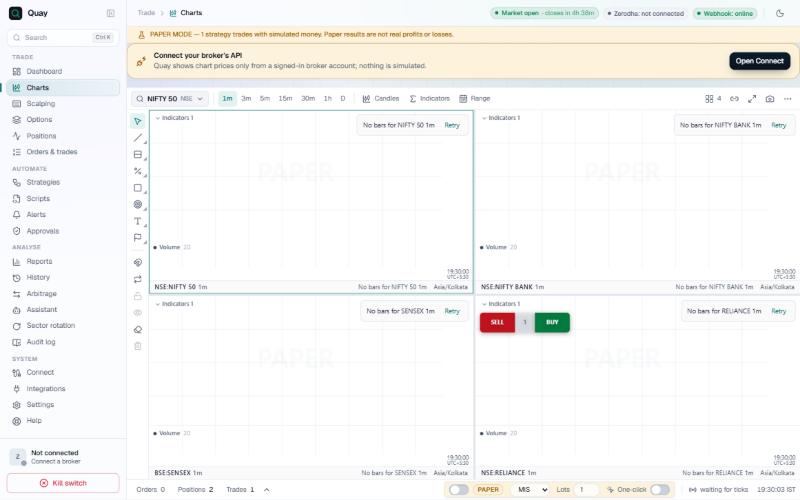
- A grid of 1 to 16 live charts; intervals 5s, 15s, 30s, 1m, 3m, 5m, 15m, 30m, 1h and 1d. History comes from your broker (seconds candles from Vyuh's own recording); live candles are built from ticks, starting at each exchange's open (NSE and BSE 09:15, MCX and currency 09:00). Scroll or drag the chart left and older candles load as you go, as far back as your broker keeps them. History that fails to load shows "Could not load…" with Retry.
- Symbol search: tabs for indices, stocks, futures, options, commodities, currency and crypto; type words like
NIFTY 24500 CE. - Indicators: every indicator by family, with favourites, recently added, your own scripts and a live preview of each. Each added indicator's name shows at the top left of its pane with larger buttons beside it to hide it, open its settings or remove it.
- Profiles (top bar): visible range and session volume profiles (up/down volume, point of control, value area) and the options OI profile: the nearest expiry's call (red) and put (green) open interest at each strike beside the price axis. Each bar is a glass tube filled with liquid: the tube's length is the strike's highest OI today and the fill is its OI now, so a strike that fell from 1 Cr to 50 L shows half full. For NIFTY, BANKNIFTY and SENSEX the day's highs come from the minutes Vyuh keeps all day. For other chains the bars show the OI now at once, and Vyuh downloads the day's minute history in the background ("Loading today's OI highs…" at the top) and fills in the highs when it's done; this needs a broker with historical data. Point at a bar to see the strike's call and put OI, today's highs and the put/call ratio.
- Watermark: each chart shows its symbol and interval faintly behind the candles at size 50 on a full-height chart, and in proportion on others (smaller with four charts in the grid, bigger full screen). A text size typed in Chart settings becomes the size for every chart, in the same proportion. Turn it off or change its text, colour or opacity in More → Chart settings → Appearance. Chart dialogs such as Chart settings can be dragged by their title bar anywhere over the charts.
- Straddle charts (top bar, Straddle): a call and a put of one expiry added together, in the active chart. The popup starts on the chart's own option chain (an index, its future or option, or an F&O stock), or type another underlying. Choose the expiry and either a rolling straddle (at each bar, the strike nearest the underlying then, so it follows the money) or fixed strikes: a strike's call and put (the at-the-money strike is offered first), or the put at another strike (a strangle, such as 23100 CE + 22900 PE); changing the underlying resets the put strike too. An instrument without options gets no chart. A label at the top middle of the chart names the strikes in use: for a rolling straddle the at-the-money strike now (such as "Rolling ATM straddle · NIFTY 03 Nov · now 24,000 CE + 24,000 PE"), which changes as the market moves; for fixed strikes the call and put strikes. A narrow chart shows just the strikes. Straddles start at 1-minute charts and update live from both legs. A bar's open and close are the legs' added; its high and low are their highs and lows added, the usual approximation. A rolling straddle loads a shorter history (a day on 1-minute charts) as it downloads every strike it touched. The chart's BUY and SELL buy or sell both legs together at market, Lots × each leg's lot size, to your default account (a rolling straddle trades the strike at the money at that moment); live orders ask first unless One-click is on.
- Forecast (top bar, an experiment): an open model, Kronos (MIT licence), guesses the active chart's next 10, 20, 30 or 60 bars from its own past bars (up to about 500) and draws them after the last bar: a shaded band covering the middle 80% of 8, 16 or 32 sampled paths, and a dashed line through their average. The first time, Download the model fetches 115 MB from Hugging Face once, checked against the published files; after that it runs on this computer, in about 1 to 3 seconds. The chart needs at least 64 bars. The band goes when you change the chart's symbol or interval, or with Remove forecast. It is a statistical guess, often wrong, that knows nothing of news, options or your positions: never advice, and not something to trade on.
- Bar replay (top bar, Replay): practise on past price action. Click a bar on the active chart (or choose Select date, First available date or Random bar) and the chart goes back to it; then play, pause or step forward and back. Speed runs from 0.1x (1 update every 10 seconds) to 10x (10 a second). Update interval lets a bar build in finer steps, for example a 15m bar over 1m updates; where your broker has no finer history the bar forms along a simulated path, shown in italics. Indicators and volume profiles redraw as they stood at each bar. While a chart replays, its live updates pause and its BUY/SELL buttons are off. Jump to real time or ✕ goes back to the present. Keys: Shift+↓ play or pause, Shift+→ step forward, Shift+← step back.
- Index volume: for NIFTY 50, NIFTY BANK, FINNIFTY, MIDCPNIFTY, SENSEX and BANKEX, volume is the sum of the constituents' volume. The first time, it fills in after a few seconds in the background; after that it's instant.
- Chart type (per chart, grouped as on TradingView): Bars, Candles, Hollow candles, Volume candles; Line, Line with markers, Step line; Area, HLC area, Baseline; Columns, High-low; Volume footprint, Time price opportunity (TPO, a letter per 30 minutes at each price, with point of control and value area), Session volume profile; Heikin Ashi, Renko, Line break, Kagi, Point & figure, Range. The footprint and order flow have their own page: Order flow, footprint and seconds charts.
- Top bar: symbol search, the interval menu (grouped into seconds, minutes, hours and days), chart type, Indicators (including your own scripts under "My scripts"), look-back range, go to date, layout (number of charts), sync between charts, full screen (Esc leaves; every tab stays as it was; pressed in a second window, it fills that window), save a picture (each chart labelled with its exchange, symbol and interval, saved to your Downloads folder under Vyuh with the symbols in the file name; the folder opens), and More (chart settings, price alerts, reset).
- Left: drawing tools.
- Charts show Vyuh's working orders and positions as lines, and have BUY / SELL buttons (the BUY/SELL switch in the trade strip turns them off and on). If the contract's lot size can't be looked up, no order goes and a message says so; Vyuh never guesses 1 lot.
- Trade strip (bottom): order and position lists, a Live orders switch (paper by default), a BUY/SELL switch for the chart buttons, Product, Lots, One-click orders (live asks first), feed health and the IST clock. The mode, Product, Lots and One-click stay set when you go to another screen and back, until Vyuh restarts.
Keys
Alt+1…9 select a chart. Esc leaves a drawing tool or restores a maximised chart. Typing a letter or digit opens symbol search.
Order flow, footprint and seconds charts
Trade → Charts → Chart type and Indicators
What it shows
- Volume footprint (Chart type): at each price inside a candle, the volume sold into the bid (left) next to the volume bought at the ask (right), each bar's delta (buying minus selling), its point of control and value area, diagonal imbalances and stacked-imbalance zones, and signals for big orders and absorption. Zoom in until the numbers show.
- Order-flow indicators (Indicators → Order flow): Cumulative Volume Delta (buying minus selling added up through each day, or across days), Volume Delta (each bar's delta, green above zero and red below) and Order Book Imbalance (total resting bid quantity against total ask quantity at each bar's end, from −100 to +100).
- Seconds charts: 5 seconds, 15 seconds and 30 seconds in the top bar's interval menu, and 5s, 15s and 30s update steps in bar replay.
Where the buy and sell split comes from
A footprint needs every trade marked as buying or selling. Indian brokers don't send that: their feeds send a snapshot about once a second with the day's total volume, the last price and the best bid and ask. Vyuh splits each snapshot's new volume itself: at or above the ask counts as buying, at or below the bid as selling, and in between by whether the price ticked up or down (an unchanged price keeps the last side). This is the standard method, but it works on one-second batches rather than single trades, so read it as a good estimate, not exchange-exact.
Limits
- Recorded while Vyuh runs, for the instruments on your charts. Vyuh keeps the split (30 days) and its 5-second candles (7 days), so a restart loses nothing. No broker provides past bid/ask volume or candles under a minute, so days before Vyuh was recording show the footprint estimated from 1-minute candles (as much buying as each 1-minute candle closed up its range), and a seconds chart starts from when the instrument was first charted. The footprint says at the top which bars are recorded and which estimated; the indicators use the same estimate where nothing was recorded.
- Spot indices have no trades. NIFTY 50 spot itself has nothing to split. Use the NIFTY future or options for order flow.
- Brokers without market depth in the feed get the price-tick rule only, which is less accurate. Order Book Imbalance needs the depth.
- The footprint fills bars of a minute or more from the recording (it is kept by the minute); a seconds footprint is estimated from its candles.
Scalping
Trade → Scalping
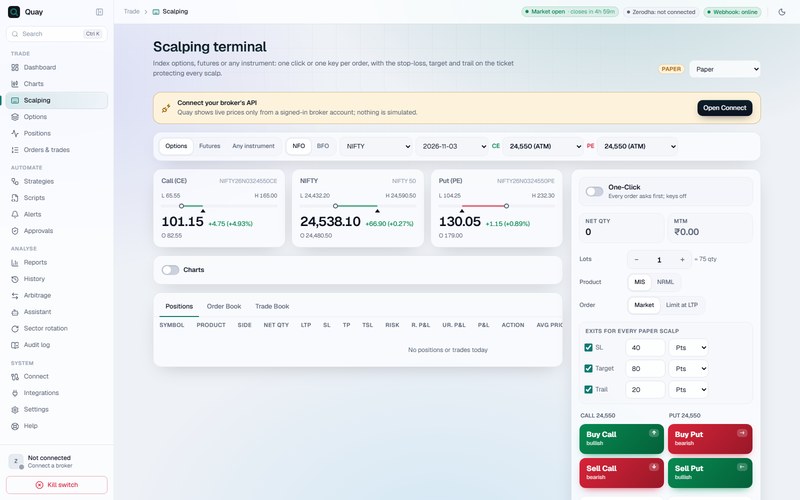
- Top strip: Options, Futures or Any instrument; NFO or BFO; underlying, expiry, and the CE and PE strikes (marked ATM, ITM n, OTM n). At its end, Scalp margin ₹… is the margin this terminal's open positions use, from your broker's margin calculator, else the imported SPAN file. It refreshes every 15 s and shows ₹0 with none open.
- Strikes: the call and put strikes settle at the money when a fresh chain first shows, then stay where they are, or where you move them, as the market moves. An order always uses the strike on screen. A strike that leaves the chain shows —, and its buttons and keys are off.
- Price tiles: call, index and put with the day's low–high bar (ring = open, triangle = last price), change on yesterday's close, and the open. Charts shows all three at 1m, 5m or 15m.
- Order ticket (right):
- One-Click off: every order asks first, keys are off. On: clicks and keys send at once; in live it asks first.
- Lots, MIS or NRML, Market or Limit at LTP; Net qty and MTM.
- SL, Target, Trail in points or %, for every scalp in this mode.
- Buy Call ↑ and Sell Put ← are green (bullish); Buy Put → and Sell Call ↓ are red (bearish).
- Set Call SL / Set Put SL (Set SL and Reverse for futures and other instruments; Reverse asks first when One-Click is off), Close All Positions (F6), Cancel All Orders (F7). Close All Positions tries every position and says what it sent and what it couldn't.
- Positions, Order Book, Trade Book: today's scalps with SL, target, trail, risk to the stop, P&L; cancel or close from the row.
- Keys and voice: rebind keys (ignored while typing, on auto-repeat, within 0.3 s, and while another dialog or menu is open); spoken confirmations.
Scalping orders use the default broker account. Lots, product, order type, One-Click, the expiry and the strikes (kept per underlying) stay set when you go to another screen and back; a restart opens on 1 lot with One-Click off. One-Click switches off when another window changed the underlying. Any Lots box (here, the chart strip, Strategies and the leg builder) can be cleared while you type a new number.
Options
Trade → Options
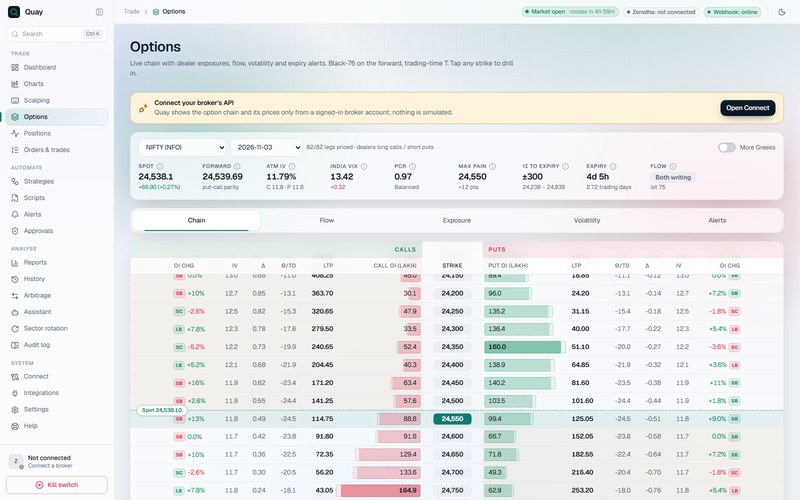
Pick an underlying and expiry. The page needs prices from a signed-in broker; with the market closed it works on the last session's prices.
Header figures
Spot, forward, ATM IV, India VIX, PCR, max pain, 1σ move to expiry, trading days to expiry, and flow. Pricing is Black-76 on the forward, with trading time that skips holidays.
Tabs
| Tab | What |
|---|---|
| Chain | Calls left, puts right; OI bars with change since yesterday and buildup tags. "More Greeks" adds gamma, vega, vanna and charm. Tap a strike to drill down and add legs. Under it: Σ OI, Σ ΔOI and Σ Vol with PCR, and the Σ ΔOI tube. |
| Flow | ΔOI by strike and a desk read. Until live, Call and Put ΔOI show the "latest minute". |
| Exposure | Dealer DEX, GEX, vanna, VEX and charm by strike; net against spot; an expiry map. |
| Volatility | IV analysis, smile, ATM IV history, the ATM straddle (today, or the last session when closed), surface. IV percentile and rank appear after 20 stored sessions. |
| Alerts | Gamma blast, pin, hedge flow. |
Σ ΔOI tube and minute history
- Calls left, puts right, against yesterday's close, with 15 and 30 minute changes. Play or drag to replay; Now returns to the latest minute. When closed, it shows the last session.
- NIFTY, BANKNIFTY, SENSEX: Vyuh records each minute while signed in and fetches missed ones (late sign-in, disconnect, holiday) from your broker's history. Without history: "No historical data", and minutes are saved live only. Other chains: press Download historical data for today (or the last session).
- Change in OI needs yesterday's OI from your broker's history; without it the desk shows ΔOI n/a. See Broker APIs.
Strategy builder (below the chain)
- Add legs from the chain, the Strategy Library (42 templates by view), or "Add a position". A leg's entry price takes decimals.
- Tabs: Payoff, Greeks, P&L table, Margin (with and without the hedge), multi-strike OI. What-if sliders: spot, IV shift, days forward.
- Summary: net premium, max profit and loss, reward:risk, POP, breakevens, margin, P&L now, and the Greeks.
- Save a basket by name, then Execute (paper) or Execute LIVE. Buying legs go first. If a leg fails, the confirm says which legs may already be placed: check Positions and Orders before trying again. Vyuh doesn't retry.
Positions
Trade → Positions
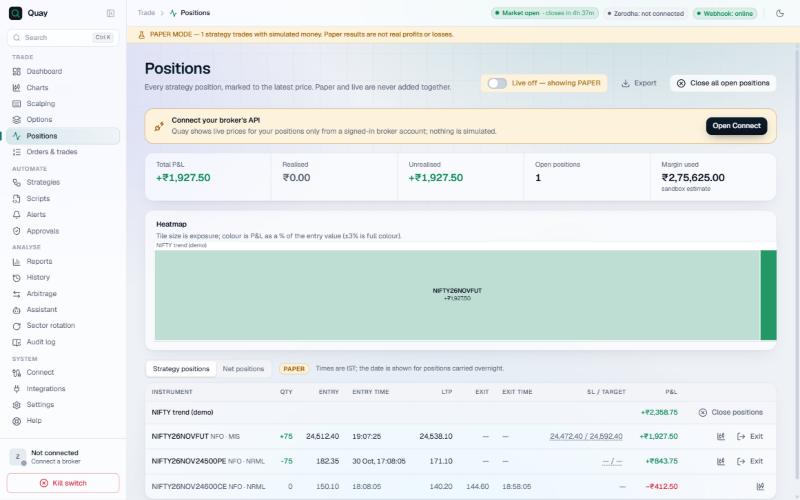
- Every position marked to market. The switch at the top shows paper or live, never added together.
- Totals: total, realised and unrealised P&L, open positions, margin used.
- Paper margin: bought options block their premium, closing orders hold no margin, and a restart keeps positions that strategies share. Paper fill prices with slippage are rounded to the tick. With the SPAN margin file (Settings → Trading), a futures calendar spread pays exposure margin on a third of the far leg, and contracts expiring that day get no spread benefit.
- Heatmap: tile size is the exposure; colour is the P&L as a percentage of the entry.
- Views: Strategy positions (including "Manual & scalping") and Net positions.
- Per row:
- qty, entry, entry time, LTP, stop-loss / target, P&L;
- a chart showing fills, average, stop and target;
- Exit;
- click the SL/target to change it (blank removes it).
- Close positions per strategy, Close all open positions, and Export CSV.
- At the broker: your default account's net positions, including trades made outside Vyuh. If Vyuh's book differs, use "Mark flat in Vyuh"; Vyuh never trades to fix a difference.
Orders & trades
Trade → Orders & trades
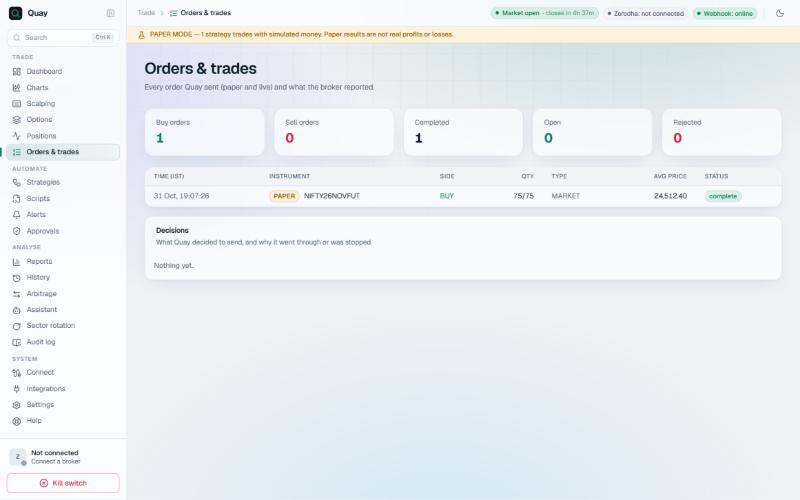
- Every order Vyuh sent, paper and live: time (IST), instrument, side, qty, type, average price, status and the broker's message.
- Totals: buy, sell, completed, open, rejected.
- Working orders: Modify (qty, price, trigger) and Cancel. Modify opens with the order's current values and sends only what you change. It's refused while the kill switch is on. With Live trading off, a change that adds risk is refused: more quantity, or a price that would trade at once on an order that doesn't only reduce a position.
- Decisions: what Vyuh decided to send, and why each order went through or was stopped (limits, duplicates, kill switch …).
GTT orders
Good-till-triggered orders waiting at your default account's broker, each with its trigger and order, and an ✕ to cancel (asks first). The card shows only for brokers whose official API offers GTT:
| Broker | GTT kinds |
|---|---|
| Zerodha, Fyers, Groww | Single trigger, and stop-loss + target (two legs) |
| Upstox, Angel One, Dhan | Single trigger |
| Other brokers | Hidden: their docs don't support it clearly enough |
Place new GTTs through the assistant or the Local API. GTT at Fyers, Groww, Upstox, Angel One and Dhan hasn't been tried on a real account yet: check your first one on the broker's own website.
Strategies
Automate → Strategies
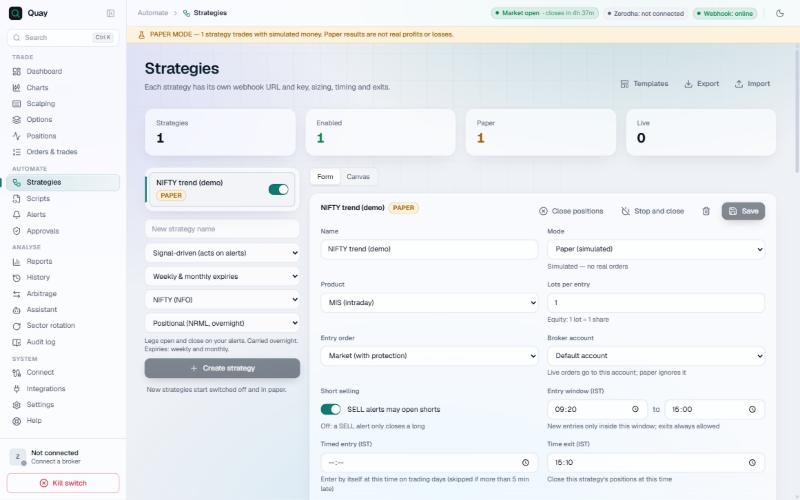
Left column
- Your strategies, each with its mode badge and on/off switch. A switched-off strategy ignores alerts.
- New strategy:
- name;
- kind: Signal-driven (acts on alerts) or Multi-leg batch (enters on start);
- instrument group: weekly & monthly expiries (NIFTY, SENSEX), monthly-only indices, stocks, MCX;
- underlying;
- Positional (NRML; CNC for stocks) or Intraday (MIS, entries 09:20–15:00, exit 15:15);
- then Create strategy. New strategies start switched off and in paper.
- Top: Templates (options templates and automation presets, including your backtested presets), Export and Import (JSON, never with keys or URLs).
Buttons: Close positions (the strategy stays on), Stop and close (switches it off and closes its positions), Delete, Save. On the Canvas tab, Apply to strategy keeps the strategy's other settings.
The form (Form tab; Canvas is a no-code block view)
Each setting below comes with an example. Rupee figures assume 1 lot of NIFTY = 65 units; Vyuh always uses the contract's current lot size. NIFTY options move in ₹0.05 ticks. Stops and targets are checked against the last traded price of the contract held, and the exit is a market order (live: a protected limit), so the fill can be a little worse than the level.
| Setting | What it does, with an example |
|---|---|
| Mode | Paper or Live. Live confirms, and takes effect only after Save. |
| Product | MIS (intraday), NRML (carry-forward F&O), CNC (delivery). An MIS NIFTY option position is squared off at 15:15; the same position as NRML is carried overnight. |
| Lots per entry | Lots per signal; for shares, 1 lot = 1 share. 2 → each BUY buys 2 lots of NIFTY 24,000 CE, 130 units. With option legs this is not used: each leg's own Lots counts. |
| Entry order | Limit at alert/LTP ± ticks (the default, 2 ticks): the limit is set from the contract's last price, moved towards a fill. NIFTY 24,000 CE last at ₹150.00: a BUY goes at ₹150.10, a SELL at ₹149.90. The alert's price is used only when Vyuh has no live price. Market (with protection): sent live as a limit a little through the price, and re-priced within a set distance while it stays unfilled. |
| Broker account | Which account live orders go to; exits stay where the position is. Paper ignores it. |
| Short selling | Long only: a SELL closes a long and nothing more; when flat it does nothing. SELL alerts may open shorts: when flat, a SELL opens a short; when long, a SELL closes the long and opens the short in one order (2 lots out for a 1-lot strategy). Short (SELL) option legs open only when this is on. |
| Entry window (IST) | 09:20 to 15:00: a BUY at 09:17 is refused (it is not kept for later); one at 14:59 trades; one at exactly 15:00 is refused. Exits are always allowed. |
| Timed entry (IST) | 09:20, SELL, NIFTY, M–F: on each trading weekday at 09:20 Vyuh acts as if a SELL alert for NIFTY had arrived. Once a day. If Vyuh starts late it still enters up to 09:25; from 09:26 it skips the day. A SELL needs Short selling on. The × removes it. Start now enters at once: save your changes first, and a live strategy asks to confirm. |
| Time exit (IST) | 15:10: every open position of the strategy closes at 15:10, and it takes no new entries after 15:10 that day. The × removes it. |
| Stop-loss, Target | In points or % of the average entry price of the contract held; empty for none. The unit stays shown while a box is empty, so you can pick % before typing. Bought NIFTY 24,000 CE at ₹150: Stop-loss 30 points exits at ₹120 or lower, Target 60 points at ₹210 or higher (20 % and 40 % give the same). Sold 24,000 PE at ₹150: Stop-loss 30 % exits at ₹195 or higher, Target 50 % at ₹75 or lower. With option legs, each leg is measured on its own premium. |
| Daily loss limit (₹) | ₹5,000: when today's booked plus open P&L of this strategy reaches −₹5,000, Vyuh closes its positions and stops it for the rest of the day. It trades again the next day. |
| Max open positions | 3, on a strategy fed stock alerts: holding RELIANCE, INFY and TCS, a BUY for HDFCBANK is refused. With option legs, one signal's set of legs counts as one position: max 1 allows one basket at a time, and a reversal still closes the old basket and opens the new one. |
| Max trades / day | 3: the fourth entry of the day is refused. A basket of legs is one trade, a re-entry is a trade, exits are not. |
Strategies: advanced exits, by example
The Advanced exits card. Stops only ever move in your favour, and every level is measured from the average entry price. In the examples you bought 1 lot of NIFTY 24,000 CE at ₹150. For a sold option everything is mirrored: the best price is the lowest one, and the stop sits above it.
Trailing stop
Trailing stop: start after is the profit, from the entry, that the best price must reach before the trail starts. Trailing stop: trail by is read according to the Trailing style. Save refuses a trailing stop with only one box filled, and names the box.
| Trailing style | Settings | What happens |
|---|---|---|
| Behind the best price (distance on entry) (the default) | start after 30 points, trail by 20 points | Nothing until ₹180. At ₹180 the stop is ₹160; at ₹200 it is ₹180. If the price then falls to ₹180, Vyuh exits: +30 points, ₹1,950. In %, trail by 10 % means 10 % of the entry price, ₹15. |
| % below the best price | start after 20 %, trail by 10 % | Starts at ₹180 (20 % of ₹150 is 30 points). The stop stays 10 % below the best price: ₹162 at ₹180, ₹180 at ₹200, ₹198 at ₹220. |
| Keep % of the best profit | start after 30 points, trail by 50 % | From ₹180 it keeps half the best profit: stop ₹165 at ₹180 (150 + 15), ₹180 at ₹210. This style is always a percentage: Points is greyed out, and saving it in points is refused. |
| Advance the stop by Y for every X | start after (X) 20 points, trail by (Y) 15 points, Stop-loss 30 points | The stop starts at ₹120. For every 20 points the best price gains over the entry, it moves up 15 from the stop-loss: ₹135 at ₹170, ₹150 at ₹190, ₹165 at ₹210. Without a stop-loss it moves up from the entry price. |
The stop never sits at the best price itself. In the first row, at ₹180 your 30 points are not all locked: the stop is ₹160, so 10 points are locked. To keep more, trail by less.
The other exits and entries
| Setting | What it does, with an example |
|---|---|
| Move stop to breakeven after | 20 points, Stop-loss 30 points (₹120): once the price has reached ₹170, the stop moves to ₹150. If the price comes back to ₹150, Vyuh exits at about cost (charges are not covered). With a trailing stop too, the tighter of the two applies. |
| Most re-entries a day (Re-entry card) | Stop-loss exits allowed per day before entries stop. 1: after the first stop Vyuh still enters; after the second it refuses entries, alerts included, until tomorrow. 0: no entry after the first stop. Every stop exit counts: trailing and breakeven exits (even in profit), each leg's own stop, and each leg a Basket stop closes. |
| Trail SL to entry price | For option legs. Short straddle: 24,000 CE sold at ₹150 and 24,000 PE sold at ₹140, each with a 40-point stop. NIFTY rallies and the CE is stopped at ₹190. The PE, now ₹100, has its stop moved from ₹180 to ₹140, its entry. A leg that is already losing when this happens closes at once. |
| After a profit-lock exit (option legs) | On a leg with a profit lock. Sold 24,550 PE at ₹100, lock from 20 points keeping 60%: it falls to ₹75 and is bought back at ₹85. With Re-enter after a cool-off of 15 minutes it is sold again once 15 minutes have passed and it is below ₹85; on a premium move of 10 points, once it is ₹75 or less; on an index move of 20 points, once NIFTY is 20 points beyond its level at the exit, the trade's way. Each re-entry has the lock again. Reopen at the expiry roll reopens the direction on the next expiry even after a lock exit. Both last until a close or opposite signal. |
| Hedge (bought call or put leg) | Closes when the sold leg of the same type for that signal closes on its own stop-loss, target or trail, so the hedge is never left open alone. |
| Allow multiple entries | Off: a second BUY while long does nothing ("already long"). On: long 1 lot of NIFTY FUT at 24,000, another BUY buys 1 more at 24,100, so 2 lots at an average of 24,050. A SELL or an exit closes all of it. With legs, each BUY opens another basket. Adding works out the stop-loss and target again from the new average, and a trailing or breakeven stop starts again from there. |
| Expiry-day roll | 09:20, on a positional strategy whose legs sell current-week NIFTY options. On expiry day the expiry-day exit (15:30, Settings) closes the legs. On the next trading day at 09:20 Vyuh sends the same direction again, so the legs open on the new current week. For index contracts and strategies with option legs only. If an alert has already opened something, nothing is sent. Empty: it stays flat. |
| Underlying (when the alert names none) | NIFTY: an alert whose message is just BUY trades NIFTY; with legs, their ATM / ITM / OTM is measured on NIFTY. An alert that names BANKNIFTY trades BANKNIFTY. It sits here, or in the Option legs card once legs are set. |
| Quantity from the alert | Lots per entry 3. The alert's number is lots: qty 2 buys 2 lots; qty 4 is refused (more than 3); no qty buys 3. The alert's number is units: NIFTY qty 130 is 2 lots; 100 is refused (not whole lots of 65). Not used with option legs. |
| Wait & Trade (%) | 0.5: a BUY arrives with the NIFTY future at 24,000. Vyuh waits and buys only once it trades at 24,120. A SELL (with Short selling on) waits for 23,880. If the price never gets there, the entry lapses at midnight. The move is measured on the contract the alert's symbol resolves to through Symbol mapping (e.g. the NIFTY future), with option legs too. Wait & Trade only delays opening: a SELL that closes a long closes it at once, and with Short selling on only the new short waits for the move. |
| Re-entry after a stop-out (Re-entry card) | Strategies without legs (with legs, the next alert re-enters). Bought NIFTY FUT at 24,000 with a 50-point stop, stopped at 23,950. At once: buys again straight away. Back at entry price: buys again when it trades at 24,000. On momentum (%) 0.5: buys again at 24,120. It waits until midnight, and Re-entries after stop-loss caps how often. A trailing or breakeven exit is a stop too: after a trailing exit at 24,080, Back at entry price buys again at once, as the price is already above 24,000. |
| Range breakout (IST) | 09:15 → 09:30, NIFTY: Vyuh notes the high and low from 09:15 to 09:30, say 24,080 and 23,990. After 09:30 it buys when the price reaches 24,080, or (with Short selling on) sells when it reaches 23,990, whichever comes first, once a day. The symbol goes through Symbol mapping like an alert's. |
| Keep the stop-loss at the broker too | Stop-loss 30 points on the CE bought at ₹150: Vyuh also places an SL-M sell at the broker, trigger ₹120, so the broker still exits if your PC or Vyuh is off. When the trail moves Vyuh's stop to ₹165, the broker order follows (at most every few seconds). Needs a Stop-loss. Not for a position above the freeze limit: Vyuh watches that stop itself, and a warning says so. If Vyuh can't tell whether the broker stop was placed, it looks it up before exiting (see Safety rules). |
A re-entry still waiting is dropped once a newer signal for the strategy has been handled. Entries and approvals waiting from paper never go out after you switch the strategy to live.
Strategies: combined P&L, CAS exit, option legs
Combined open P&L
Its own card: the unrealised P&L of the strategy's open positions added up. Each limit closes all of them. The example is a short straddle, 1 lot each: 24,000 CE sold at ₹150 and 24,000 PE sold at ₹140.
| Setting | Example |
|---|---|
| Basket stop (₹) | 3,000: CE ₹215 (−₹4,225) and PE ₹122 (+₹1,170) make −₹3,055, so both legs close. |
| Basket target (₹) | 4,000: CE ₹110 (+₹2,600) and PE ₹118 (+₹1,430) make +₹4,030, so both legs close. |
| Profit lock (₹): lock at → keep | 3,000 → 1,500: once the total has reached ₹3,000, both legs close if it falls back to ₹1,500. An empty keep box means ₹0. |
| Trail the lock (₹): every → by | 1,000 → 500, with the lock above: each further ₹1,000 of best profit lifts the kept amount by ₹500. Best ₹3,999 keeps ₹1,500; best ₹4,000 keeps ₹2,000; best ₹5,200 keeps ₹2,500. |
Only open positions count: once a leg has closed, its booked P&L is no longer part of the total. Vyuh checks the total about once a second while prices come in. The lock remembers the best total while Vyuh runs; after a restart it starts again from the current total.
Closing Auction Session (CAS) Exit
Its own card; from 3 Aug 2026; off by default. On each trading day, from From (default 15:15) to the F&O close, Vyuh watches the main leg's premium on candles of the chosen Timeframe: 1 minute (default), 3, 5, 15 or 30. When the premium turns against the position on a closed candle, Vyuh closes every leg of the strategy. If it is already against the position at the first candle close after From, Vyuh exits then rather than waiting for a fresh turn. Exit style: Tighter exit — reacts sooner (like your script's Shorter Closing) or Looser exit — gives the trade more room (like Lengthy Closing). Main leg: Sold leg, else bought (default), Sold leg or Bought leg.
Example: a positional strategy holds a sold NIFTY 24,000 PE. At 15:15 its premium has been falling, which suits the seller. On the 15:22 candle it turns up, against the seller, and at that candle's close Vyuh closes all the legs. If instead the premium had jumped from ₹42 to ₹55 within a single candle, more than an average candle's size past the exit level, Vyuh would exit at once instead of waiting for the close. It exits once a day; the notice says which way it fired. It acts on a turn: if the premium is already moving against the position at 15:15, Vyuh waits for it to turn in your favour and then against again. MIS positions are squared off at 15:15 anyway, so this matters for positional strategies.
Option legs
- Empty: the strategy trades the alert's instrument itself. With legs, each signal opens these contracts on the underlying. Up to 10 legs.
- Per leg: On signal (Long (BUY) or Short (SELL)); Contract (CE (call), PE (put), Future or Stock (cash)); Side (Buy, or Sell to write); Lots (shares for a stock leg); Strike; Expiry: Current week, Next week, Current month or Next month, shown with the actual dates.
- Strike, ATM / ITM / OTM: steps are listed strikes, 50 points apart for NIFTY near the money. ITM and OTM are worked out for a call or a put, and stay as picked if you switch a leg between CE and PE. With NIFTY at 24,012, ATM is 24,000:
| Pick | CE | PE |
|---|---|---|
| ITM2 | 23,900 CE | 24,100 PE |
| ITM1 | 23,950 CE | 24,050 PE |
| ATM | 24,000 CE | 24,000 PE |
| OTM1 | 24,050 CE | 23,950 PE |
| OTM2 | 24,100 CE | 23,900 PE |
- The underlying price used is the alert's own price if it carries one (e.g.
{{close}}); otherwise that expiry's forward from the option chain, or the index spot, never the monthly future. - Other strike rules: Premium ≈ ₹ 100 takes the strike priced nearest ₹100; Premium ₹ min–max 80-120 takes, of the strikes priced ₹80 to ₹120, the one nearest the money; Delta ≈ 0.25 takes the strike with delta nearest 0.25; % from ATM 1 takes the strike nearest 1 % above the underlying (24,012 → 24,250). A positive % is a higher strike for puts too, so use −1 for an out-of-the-money put (23,750). × straddle width 1: with the ATM straddle at ₹150 + ₹140 = ₹290, calls go to 24,300 and puts to 23,700. Premium ≥ ₹ 100: within 10 strikes of ATM, the cheapest at ₹100 or more; Premium ≤ ₹ 100: the dearest at ₹100 or less. Strike: that strike exactly.
- This leg's exits, on the line below each leg, in pts or % of the leg's own entry. Sold 24,050 PE at ₹160, in pts: Stop-loss 40 exits at ₹200; Target 80 at ₹80; Trail: every 20 → move stop by 20 moves the stop down 20 for every 20 the premium falls: ₹180 at ₹140, ₹160 at ₹120, ₹140 at ₹100. An empty box uses the strategy's Stop-loss, Target or trailing stop. Each leg keeps its own exits, even when two legs are the same type and side (e.g. two sold calls at different strikes).
- Buying legs go first, then selling (writing) legs, so margin benefits apply and a selling leg never goes out alone when a buying leg fails.
- If a leg is refused after others went, those stay open under their stop-loss and target, and an alert goes out (on screen and Telegram). Vyuh retries the missing leg up to 6 times, 2 s apart, at the same strike, then one strike either side. A second alert says when the basket is complete, and at which strike, or that it couldn't be completed, naming the open legs.
Signals card
- Copy: copies the webhook URL with the key (shown masked), or the local URL while the tunnel is offline. It is the only address an alert needs; messages carry no key.
- Test: sends a test alert; no order.
- New key: click twice. Old URLs stop working at once; paste the new one into your alerts.
Symbol mapping
Translates alert symbols (e.g. NIFTY1!) to broker instruments, as a fixed symbol or the nearest-expiry future, per strategy or for all. "Unknown symbol" in Alerts means a mapping is missing.
Strategies: worked examples
Settings working together. 1 lot of NIFTY = 65 units throughout.
1. NIFTY option selling, intraday
Product MIS; Short selling on; Stop-loss 30 %; Profit lock 3,000 → 1,500; Time exit 15:10. Legs: Long (BUY) → PE, Sell, 1 lot, ITM1, Current week; Short (SELL) → CE, Sell, 1 lot, ITM1, Current week.
| Time | Market | What Vyuh does |
|---|---|---|
| 10:05 | BUY alert; NIFTY 24,012 (ATM 24,000) | Sells 1 lot of 24,050 PE (ITM1 for a put) at ₹160. Its stop is ₹208, 30 % above. |
| 11:40 | NIFTY rises; PE ₹125 | Open P&L +₹2,275. Nothing to do. |
| 12:15 | PE ₹113 | +₹3,055: the lock is reached, and ₹1,500 is now kept. |
| 13:00 | PE ₹106 | +₹3,510, the best so far. With no trail on the lock, the kept amount stays ₹1,500. |
| 14:20 | NIFTY falls; PE ₹137 | +₹1,495, below ₹1,500: Vyuh closes the PE, about ₹1,495 booked. |
Other days: had NIFTY fallen at once, the stop at ₹208 would have closed the PE for about −₹3,120 (48 points). Had nothing fired, the 15:10 time exit would have closed it. A SELL alert with NIFTY at 24,060 (ATM 24,050) closes the PE and sells 1 lot of 24,000 CE (ITM1 for a call), with its own 30 % stop.
2. A trailing stop with breakeven
Bought 1 lot of NIFTY 24,000 CE at ₹150. Stop-loss 30 points; Move stop to breakeven after 20 points; Trailing stop: start after 40 points, trail by 25 points; Trailing style Behind the best price.
| Price | Stop | Why |
|---|---|---|
| ₹150 (entry) | ₹120 | Stop-loss, 30 points below the entry. |
| ₹170 | ₹150 | 20 points up: breakeven. |
| ₹185 | ₹150 | The trail needs 40 points. |
| ₹190 | ₹165 | The trail starts: 190 − 25. |
| ₹212 | ₹187 | It follows the best price. |
| ₹200 | ₹187 | It never moves back. |
| ₹187 | exit | About +37 points, ₹2,405. |
Had the price turned at ₹185, the exit would have been at ₹150, about cost.
3. A short straddle with leg exits and a basket stop
Timed entry 09:20, BUY, NIFTY; legs on Long (BUY): CE Sell 1 ATM and PE Sell 1 ATM, each with This leg's exits in pts: Stop-loss 40, Trail every 20 → move stop by 20. Basket stop ₹2,000; Trail SL to entry price on. At 09:20, with NIFTY at 24,010, Vyuh sells 24,000 CE at ₹150 (stop ₹190) and 24,000 PE at ₹140 (stop ₹180).
| Time | Market | What Vyuh does |
|---|---|---|
| A trending day | ||
| 10:00 | PE ₹120, 20 in your favour | PE stop ₹180 → ₹160. |
| 10:40 | NIFTY rallies; CE ₹190, PE ₹105 | The CE is stopped: about −₹2,600. The total was −₹325, far from the basket stop. Trail SL to entry moves the PE's stop to ₹140. |
| 11:30 | PE ₹80, 60 in your favour | Three steps of 20: PE stop ₹120. |
| 13:00 | PE back to ₹120 | The PE closes: about +₹1,300. Day: about −₹1,300. |
| A volatile day | ||
| 12:30 | News; CE ₹172, PE ₹157 | Neither leg is at its own stop, but together they are −₹1,430 − ₹1,105 = −₹2,535: the basket stop closes both. |
After the CE closed on the trending day, the basket stop saw only the PE: the CE's booked ₹2,600 was not counted. The basket stop on the volatile day counts as two stop-losses toward Re-entries after stop-loss.
4. A NIFTY future with a capped re-entry
Alerts trade the NIFTY future (Symbol mapping NIFTY1! → nearest future). Lots per entry 1; Stop-loss 50 points; Re-entry after a stop-out Back at entry price; Re-entries after stop-loss 1.
| Time | Market | What Vyuh does |
|---|---|---|
| 09:45 | BUY alert at 24,100 | Buys 1 lot; stop 24,050. |
| 10:30 | Falls to 24,050 | Stopped: about −₹3,250, the first stop. It now waits for 24,100. |
| 11:15 | Back at 24,100 | Buys again; stop 50 points below the new fill. |
| 12:00 | Falls to 24,050 | Stopped again: about −₹3,250, the second stop, more than the 1 allowed. No more entries today, alerts included. |
Scripts
Automate → Scripts
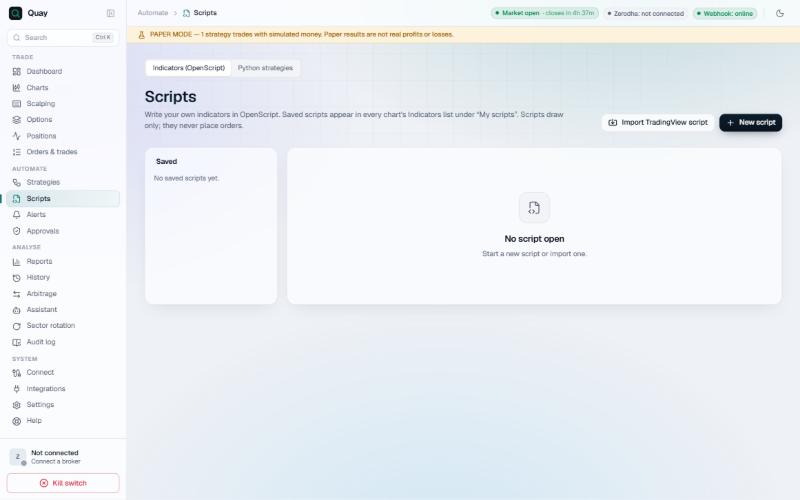
Indicators (OpenScript)
- Write indicators in OpenScript. Saved scripts appear under "My scripts" in every chart's Indicators list. They draw only and never trade.
- New script, Save, delete; Import TradingView script translates on your PC (review the notes it gives).
- Backtest strategy scripts in History → Backtest.
Python strategies
- Install Python 3 from python.org (tick "Add to PATH").
- Turn on Settings → Local API, plus Allow orders if the script should trade.
- Press Find Python → Use, then New Python strategy, Save and Start.
Per script:
- a
main.pyeditor; - a schedule (start and stop, IST), restart after a crash up to N times, and a memory limit;
- Secrets: environment variables kept in the keychain and masked in the output;
- live Output, with logs saved daily; a line over 2,000 bytes is cut (secrets are still masked);
- Sandbox, off by default:
- Low integrity: keeps the script from changing your files and the scripts' code; it can still read files and use the network. It doesn't protect against another Low-integrity program running at the same time, so Vyuh runs one Low script at a time: use Isolated to keep scripts apart;
- Isolated: each script in its own sandbox container, with its own folder only and no internet (no outside data feeds, no pip installs while it runs). It reaches Vyuh through a private pipe, which
quay_clienthandles. The first time, Vyuh gives the sandbox read access to your Python's folder.
The script's folder. Scripts run in their own work folder. Files saved by earlier runs are moved there once, and Python code stays beside main.py; the first run notes what moved and names any Python files kept, so you can spot one you didn't add. After every run Vyuh closes the folder and checks it. A folder it can't close is refused next time: copy the script, delete it and add it again. A script whose folder (outside work) contains a link is refused.
Limits: 32 processes, 50% CPU, no clipboard. Each run gets a fresh local API key: Vyuh passes a script only its own key and the secrets you set for it, never your broker tokens.
Alerts
Automate → Alerts
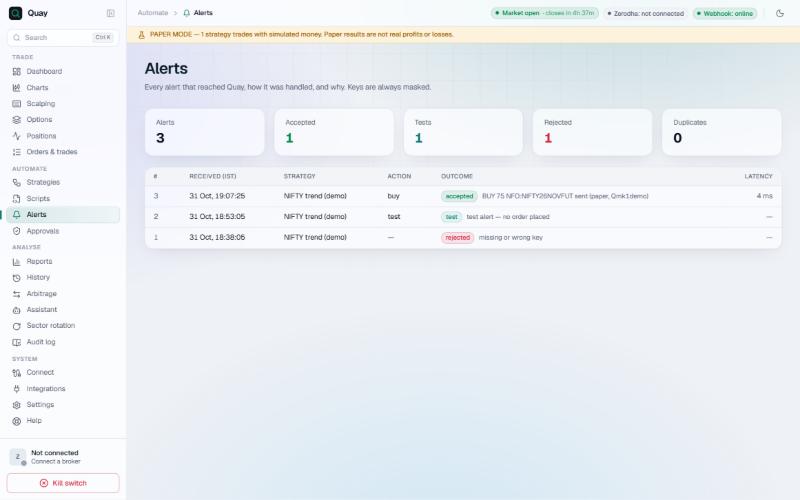
- Every alert that reached Vyuh: received time (IST), strategy, action, outcome with the reason, and latency. Keys are always masked.
- Totals: alerts, accepted, tests, rejected, duplicates.
- Common outcomes:
- accepted, with what was sent;
- test;
- rejected: wrong key, strategy off, outside the entry window, kill switch, trade limit, holiday, live trading off, unknown symbol, stale (more than 60 s old), awaiting approval, engine busy (32 of the strategy's alerts already waiting);
- duplicate.
Approvals
Automate → Approvals
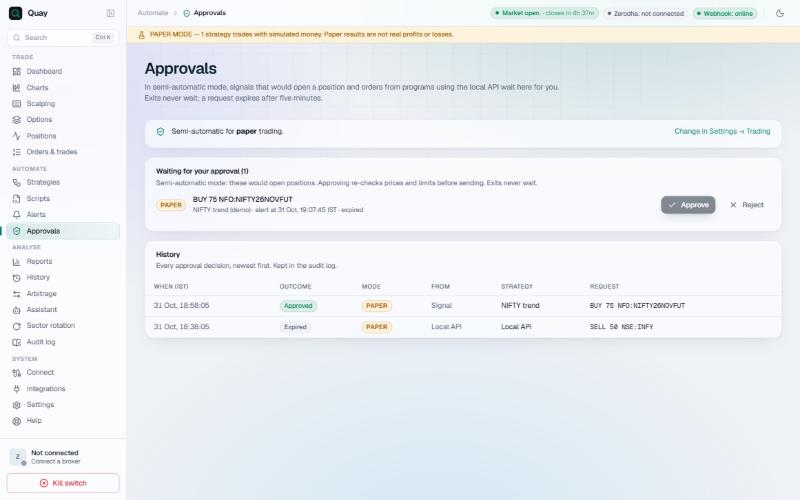
- Semi-automatic mode (Settings → Trading → Order approval, per mode): signals that would open a position, and Local API orders, wait here and on the Dashboard.
- Approve re-checks prices and limits before sending; Reject drops the request. Requests expire after 5 minutes. A request made while the strategy was in paper never goes out live, even if you switch the strategy to live meanwhile.
- Approve all approves exactly the rows on screen, one by one. While it runs, the row buttons can't be pressed, and the other way round. A request already decided says "already decided or expired".
- Exits (signal exits, stop-loss, target, trailing, square-off) never wait.
- History: every approval decision, newest first, also kept in the audit log.
Orders from the Assistant and AI apps are approved on their own cards (Assistant tab, or the pop-up for AI apps), and from Telegram for paper.
- A waiting card is checked again when you approve it. It's refused, with the reason, if since it was made the assistant went read-only, the
assistant-stopfile appeared, the tool or account-wide actions were switched off, or the AI client was removed. - With Ask for the app password before approving a live order from the assistant on (Settings → AI assistants), the pop-up and Settings → AI assistants → AI clients ask for the password too.
Reports
Analyse → Reports
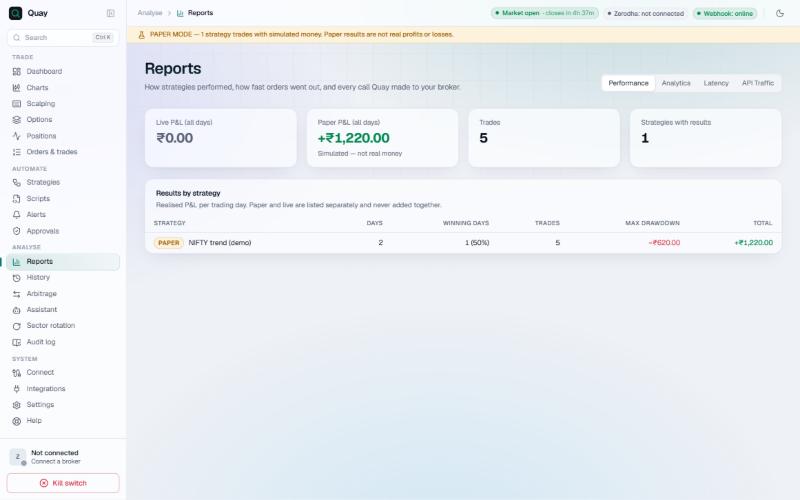
| Tab | What |
|---|---|
| Performance | Realised P&L by strategy per trading day; paper and live separate; days, winning days, trades, max drawdown, total |
| Analytics | A tearsheet on the capital you enter: returns, drawdowns, ratios. Each day's return is on your capital plus the P&L before that day, so 250 days that each make 1% of your capital show 250%. Trading days with no P&L count as flat days; weekends and holidays are left out |
| Latency | Alert → acknowledgement and alert → fill timings |
| API traffic | Incoming alerts over the last 24 h; outbound broker calls (without bodies or keys) |
History: data and backtests
Analyse → History
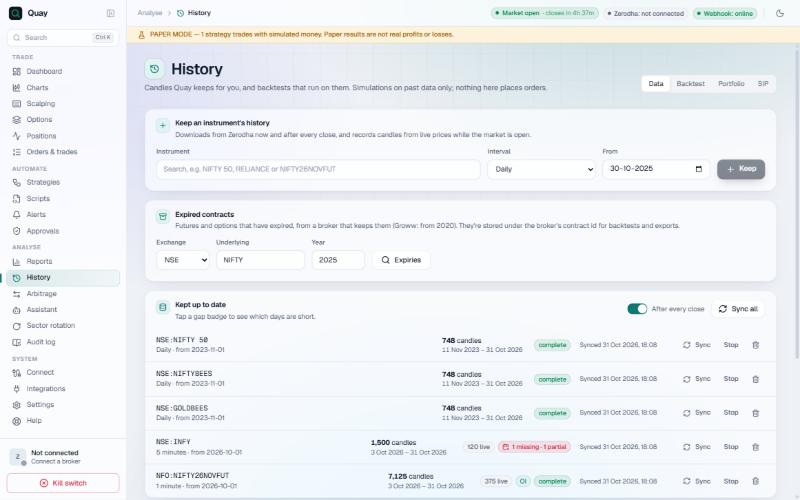
Data
- Keep an instrument's history: instrument, interval, from date → Keep. It downloads from your broker; without one, Vyuh records candles from live prices.
- Kept up to date: gaps, Sync, Stop, delete; "After every close" auto-sync; Sync all.
- Expired contracts (Groww, from 2020): exchange, underlying, year, then expiry, contract, interval → Download.
- Import a CSV or Export (Parquet or CSV) to a Vyuh folder in your Downloads.
Backtest
- Backtest a script: an OpenScript strategy on stored candles, filling at the next bar's open, with a trades CSV and a tearsheet; then Walk-forward (its boxes take decimals) and Robustness (Monte Carlo).
- Backtest an options template:
- any Strategy Library template, run once a day on a stored index series;
- enters at a time, with strikes from that moment's ATM;
- exits at a time or on a stop-loss or target in rupees;
- premiums are modelled (Black-Scholes at a flat IV), not real past option prices.
Portfolio and SIP
Portfolio: weighted holdings on daily closes, with rebalancing and costs. SIP: a monthly amount with a yearly step-up, and XIRR.
Arbitrage
Analyse → Arbitrage
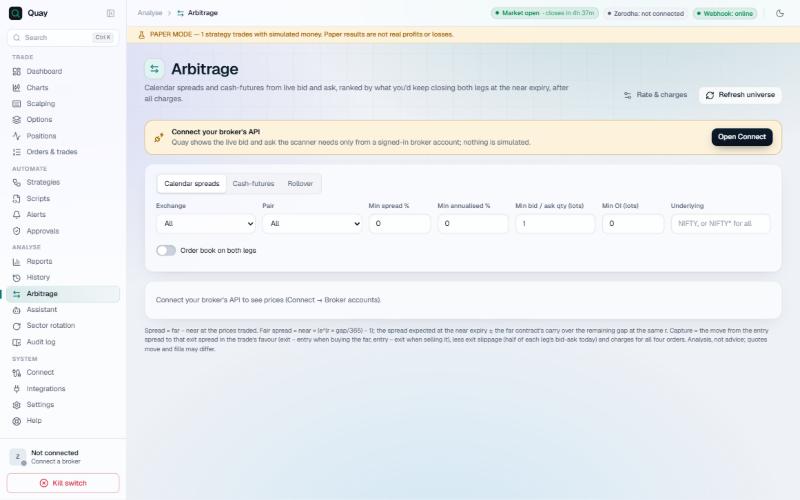
- Tabs: Calendar spreads, Cash-futures, Rollover. Priced from live bid and ask, ranked by what you'd keep after charges, annualised.
- Filters: exchange, pair, minimum spread %, minimum annualised %, minimum bid/ask qty, minimum OI, underlying (end with * for a prefix), "Order book on both legs". The two minimum % filters, and the values in Rate & charges, take decimals.
- Trade opens a two-leg basket (paper by default). If a leg fails, the confirm closes and says some legs may already be placed: check Positions and Orders before trying again.
- Rate & charges holds the interest and charge rates; check them against your broker.
- STT follows Budget 2026 from 1 April 2026: futures 0.05%, option premium 0.15% (sell side), exercised options 0.15%. Earlier trades keep the old rates. Vyuh's charges here, in Reports → Analytics, on order cards and in the Options builder all use these. Rates you saved yourself in Rate & charges keep their value until you edit them.
- Rollover: futures expiring within N days; Roll sends both orders under the position's strategy and mode.
- Needs Zerodha full-mode quotes in market hours. Reverse cash-futures is flagged "needs SLB".
Assistant
Analyse → Assistant
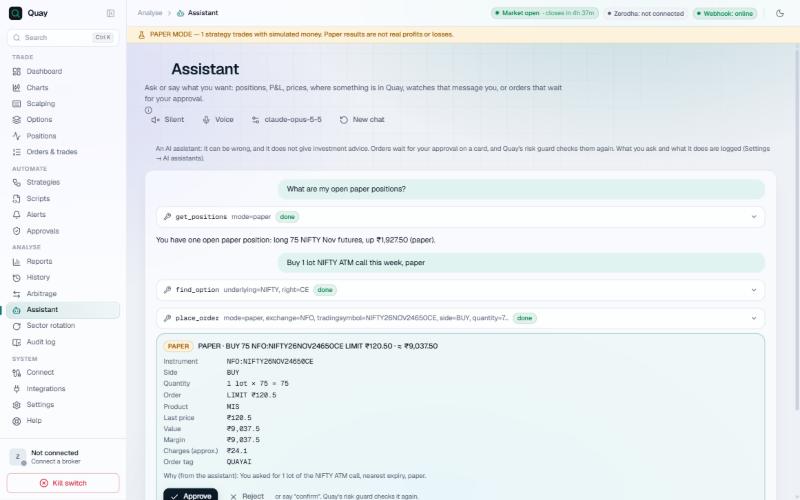
- Built-in (no AI key): short commands and quick buttons (Today's summary, Positions, Greeks, Payoff, Expiry risk, NIFTY chain, Orders today, Funds, Watches, Calendar). Orders still come as cards you approve; it asks when lots, CE or PE, or MIS or NRML is missing, and never picks a strike for you.
- Model: Claude with your own Anthropic API key, or an OpenAI-compatible endpoint (e.g. Ollama at
http://localhost:11434/v1). Keys are kept in Windows Credential Manager. Setting it up: the next page. An endpoint, and the Voice card's transcription endpoint, may use plainhttp://only to localhost, 127.0.0.1 or [::1], checked when saved and when used. - Voice: speak instead of typing (Silent or Voice). New chat starts over. Enter sends.
- Each tool it uses is shown, and each order is a card with PAPER/LIVE, details and the "Why" (your request). Approve or Reject, or say "confirm" to approve the newest waiting order card; for any other card, or one needing the app password, it points you to the card. A basket sends its buying legs first; if a leg fails, it says which legs went (it doesn't retry).
- Watches: "tell me on Telegram when NIFTY crosses 25,000", "send my P&L at 15:30 daily", or "send me a ready check at 09:00 every trading day". Creating or deleting one asks on a card first.
- Facts it can give: performance, Greeks and what-if, chain summary, futures basis, calendar, tax summary, slippage, symbol comparison, sector rotation, audit search, latency per broker, order pacing and rate limits, positions near expiry, "what if I'd exited at…", monthly target progress, your return against an index, and a self-test of its tools.
- Greeks price each expiry on its own forward and list any leg they skip, with the reason. Performance, the monthly target and the index comparison include manual trades.
- The tax summary takes the segment from the exchange (a share whose name ends in CE or PE, like RELIANCE, isn't an option), adds CTT for MCX, pairs same-day share trades first, and counts a sale as long-term after the first anniversary (IST).
- Checks it can run: "will my TV test alert trade?" (every check an alert must pass, with the fix for each) and the retail-algo rules against your accounts (static IP, algo ID, order tags on today's live orders).
- Export as a trade journal: the conversation, today's trades and your notes, saved to the
journalsfolder. - Answer in: pick one of 10 languages; symbols, numbers and button names stay as they are.
- Settings → AI assistants controls what it may do: read-only, per-tool switches, account-wide actions (with the app password), the password for live approvals, and order limits. It also lists your saved preferences.
Assistant: connecting an AI model
Analyse → Assistant → Model card
Vyuh doesn't include an AI model: you connect your own for questions in your own words. Until you do, the built-in assistant answers short commands (type help), and everything else in Vyuh works as usual. Open the Model card with the button at the top of the Assistant page.
Three ways to connect one
| Way | What it costs | Good to know |
|---|---|---|
| Claude, with your own Anthropic API key | Billed per use to your Anthropic account (prepaid credit, separate from a Claude.ai subscription) | Best at requests with several steps, such as "buy 1 lot NIFTY ATM call". |
| A local model: Ollama or another OpenAI-compatible server | Free; nothing leaves this PC | Needs a strong PC. Smaller models are noticeably worse at using Vyuh's tools. |
| Claude Desktop or another AI app, through Settings → AI assistants (MCP) | Your plan with that app | You chat in that app instead of this page; its orders still wait for your approval in Vyuh. |
Get and save an Anthropic API key
- Go to console.anthropic.com and sign in, or create an account.
- Under Billing, add credit. The API is prepaid.
- Open API Keys → Create key and copy the key. It starts with
sk-ant-and is shown only once. - In Vyuh, open Analyse → Assistant. In the Model card, pick Claude (Anthropic API), paste the key into Anthropic API key and press Save. The card closes and Send works.
- Back in the Anthropic console, set a monthly spend limit, so a busy day can't run up an unexpected bill.
The Model card
| Field | What to choose |
|---|---|
| Provider | Built-in (no AI key) for short commands only, Claude (Anthropic API), or OpenAI-compatible endpoint for a local model: then fill in Endpoint (Ollama: http://localhost:11434/v1) and the model's name, such as llama3.1. Ollama must be running with that model downloaded. |
| Model | claude-opus-5-5: most capable, costs the most per message. claude-sonnet-5-5: cheaper and quicker, handles most questions well. claude-haiku-5-5: cheapest. Start with Sonnet; switch to Opus if requests with several steps go wrong. |
| Effort | Medium is a good default. Higher thinks longer and costs more per message. |
| Answer in | The language you write in, or one of 10 languages. |
| API key | Kept in Windows Credential Manager, never in a file. Type a new one to replace it, or press Remove key. |
Change these later with the button showing the model's name, at the top of the Assistant page.
Sector rotation
Analyse → Sector rotation
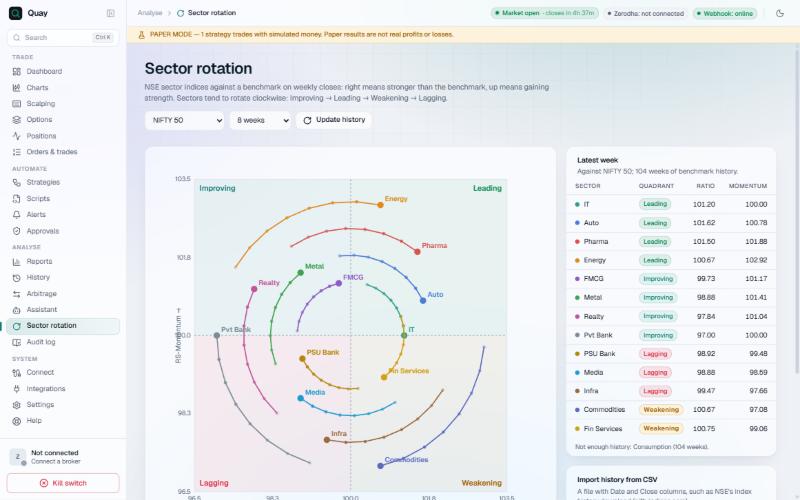
- NSE sector indices against a benchmark (e.g. NIFTY 50), on weekly closes:
- right means stronger than the benchmark, up means gaining strength;
- sectors tend to rotate clockwise: Improving → Leading → Weakening → Lagging.
- Benchmark and tail length (weeks) are selectable. The table lists each sector's quadrant, ratio and momentum.
- Needs about 40 weeks of closes: Update history (broker) or Import history from CSV (Date, Close; e.g. from niftyindices.com).
Audit log
Analyse → Audit log
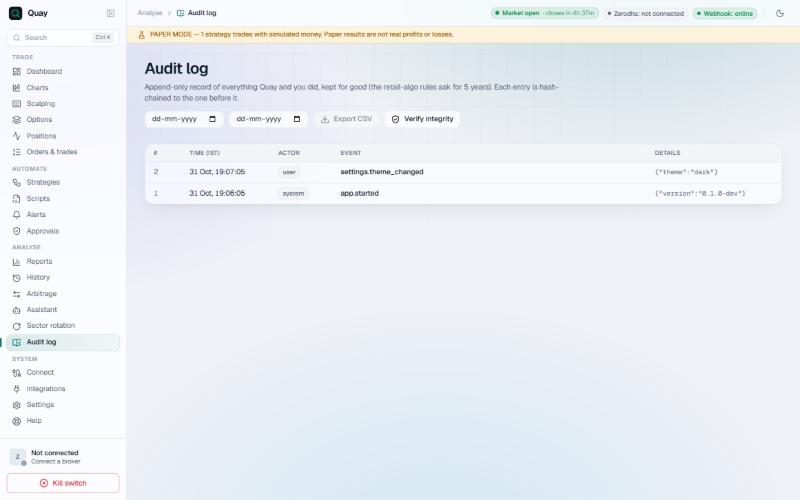
- An append-only record of everything Vyuh and you did: orders, fills, stop moves, strategy changes, live-switch changes, key copies, Local API and AI requests, approvals.
- Each entry is hash-chained to the one before it. Verify integrity checks the chain.
- Export CSV for a date range. Kept for good (the retail-algo rules ask for 5 years).
Connect: broker accounts
System → Connect
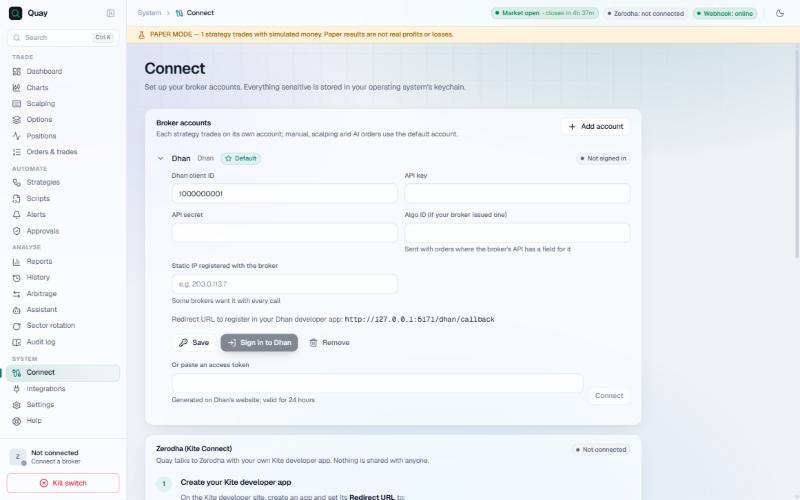
- Add account → broker, an optional name, and Sandbox if the broker offers one → Add.
- Open the row and fill in its fields (API key and secret, client ID …). Register the Redirect URL shown on it in your broker's developer app, and register your static IP with the broker.
- Sign in or press Connect: Vyuh saves what you typed first. Each broker's steps are in Broker APIs, the pages after this one.
- Make default: the default account is used for funds and for manual, scalping and AI orders, and for prices unless you pick another account under Market data. Each strategy can trade on its own account.
- Row buttons: Refresh instruments, Sign out, Remove (deletes its keys only).
- Every account has Algo ID and Static IP registered with the broker fields.
- Static IP (for every broker): Check this computer's public IP compares this computer's public IP with each account's Static IP registered with the broker, and names any account that doesn't match or has none. The setup wizard uses the same check.
- Zerodha (Kite Connect) card: Zerodha's own steps only (the Kite developer app, the API key and secret, and the daily sign-in, since sessions end at 06:00), with a link to Zerodha's static IP guide. Each sign-in carries a one-time code; a reply that belongs to another sign-in is ignored.
- Session end: when a session reaches its end time (Zerodha's at 06:00 IST every day, others when their token lapses), Vyuh signs the account out within 30 s and sends a notification to sign in again. The row shows Session ended … · sign in again instead of Connected, and prices move to the backup feed if one is set and signed in.
Market data
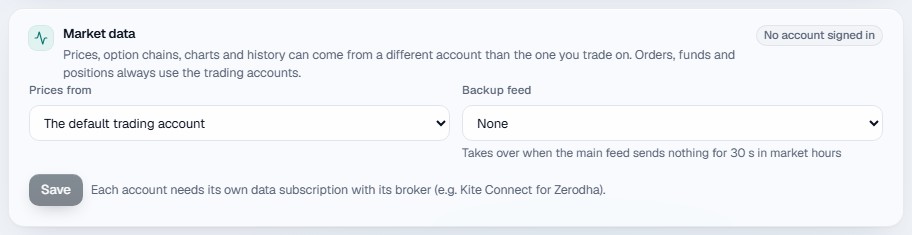
- Prices from: the account whose feed gives prices, option chains, charts and history. Orders, funds and positions always use the trading accounts.
- Backup feed: an account that takes over when the main feed sends nothing for 30 s in market hours. See Brokers.
Broker APIs: before you start
Vyuh trades and gets prices through your broker's own API, a developer key you create once at the broker (about 10 minutes); after that you only sign in each day.
The same four things at every broker
- Open the broker's API page (the link on its card) and sign in with your trading account.
- Create an app or key. Where it asks for a Redirect URL, paste the one Vyuh shows on the account row in System → Connect (also on each card here).
- Register your static IP (SEBI refuses API orders from any other address since 1 April 2026). Get one from your internet provider or use a VPS; most brokers take a primary and a backup IP.
- Copy the keys into Vyuh: System → Connect → Add account → the broker → paste the values named on its card → Save → sign in.
- Start with a broker whose API gives live prices, and historical data if you can (the History tag). Make it Prices from in Connect → Market data. Vyuh's charts, option chain, analysis and paper trading all run on it.
- If you trade at a different broker, add it as a second account just for placing orders. It needs no live-price plan or historical data: Vyuh keeps taking prices from the first broker and only sends orders to this one. Pick it per strategy, or Make default for manual and scalping orders.
Free or paid
| Group | Brokers |
|---|---|
| Free orders and live prices | Upstox, Angel One, Fyers, Flattrade, Kotak Neo, IIFL Capital, Alice Blue, Tradejini, 5paisa, Samco, HDFC Securities, Paytm Money, Rupeezy (Vortex), Definedge, INDmoney, Sahi, m.Stock, Nubra, TradeSmart, Delta Exchange (crypto) |
| Paid a monthly plan | Zerodha (live prices ₹500/month), Dhan (live prices ₹499 + taxes), Groww (₹499 + taxes), Compositedge (₹250 + ₹250) |
| Unclear no clear information available | Shoonya (Finvasia), HDFC Sky, Arrow, Pocketful, Firstock, Zebu, RMoney (XTS): check with the broker before you rely on it |
Historical data
| Group | Brokers |
|---|---|
| History Vyuh downloads minute and daily candles | Upstox, Angel One, Fyers, Shoonya (Finvasia), Flattrade, Kotak Neo, IIFL Capital, Alice Blue, Tradejini, 5paisa, Samco, Rupeezy (Vortex), Definedge, Sahi, m.Stock, Firstock, TradeSmart, Compositedge (XTS), Zebu, RMoney (XTS); and with their paid plan: Zerodha (Kite) (with Kite Connect), Dhan (with Data APIs), Groww (3 months, with the subscription) |
| No history live prices only | HDFC Sky, HDFC Securities, Paytm Money, Arrow, INDmoney, Pocketful, Nubra, Delta Exchange (crypto) |
History feeds Charts, backtests and the Options page's full-day minute history. With a No history broker Vyuh keeps only the minutes it sees live. Option flow and exposure history also need open interest in the candles, which not every broker sends.
Change in OI by broker. Should work: Zerodha, Dhan (with Data APIs), Sahi, Upstox, Fyers, Shoonya, Flattrade, Zebu, TradeSmart, Compositedge, RMoney, Definedge and Firstock. May work: Angel One and Groww. ΔOI n/a: 5paisa, m.Stock, Samco, Alice Blue, Kotak Neo, Tradejini, Rupeezy, IIFL Capital and every No history broker.
Prices as each broker published them in October 2026; they may change, so check before you subscribe. Brokerage and taxes are separate. Vyuh never types your password or 2-step code: where a code is needed you type it, and it isn't stored.
Free broker APIs
No subscription for orders or live prices. Brokerage still applies.
With historical data
Upstox Free History
Go to: account.upstox.com/developer/apps · Trading API and live data free (WebSocket included).
- Create an app; Redirect URL
http://127.0.0.1:5172/upstox/callback. - My Apps → Static IPs: primary and secondary (change once a week; changing it signs you out).
- In Vyuh: API key, API secret.
Each day: Browser sign-in each day (valid until 03:30 next morning). MCX orders by API are switched off by Upstox.
Angel One Free History
Go to: smartapi.angelone.in · SmartAPI free, including live and historical data.
- Create an app; Redirect URL
http://127.0.0.1:5173/angelone/callback; Primary Static IP (IPv4). - Turn on TOTP (authenticator) for your account.
- In Vyuh: Client code, SmartAPI key, Secret key (not needed for PIN sign-in).
Each day: Browser sign-in, or PIN + authenticator code, each day.
Fyers Free History
Go to: fyers.in/web/api-dashboard/user-apps · Free (Standard). Prime, ₹499 + taxes a month, only raises limits.
- Create the one “Algo trading” app; Redirect URL
http://127.0.0.1:5174/fyers/callback; primary static IP. - Accept the terms and Activate.
- In Vyuh: App ID, Secret ID.
Each day: Browser sign-in with 2-step each day (ends 06:30).
Flattrade Free History
Go to: wall.flattrade.in → Pi → Create new API key (wall.flattrade.in) · Free, including live data.
- Choose under 10 orders a second; Primary IP (and Secondary), app name, Redirect URL
http://127.0.0.1:5176/flattrade/callback. - Wait for the key to be approved.
- In Vyuh: API key, API secret.
Each day: Browser sign-in each day after 6 AM. At most 40 orders a minute.
Kotak Neo Free History
Go to: Neo app → More → Trade API (www.kotakneo.com/platform/kotak-neo-trade-api/) · Free at present, data included.
- Create an app and copy its access token; set up TOTP in an authenticator.
- Add your IP: primary and secondary (7-day lock).
- In Vyuh: UCC (client code), Access token, Registered mobile number.
Each day: MPIN + authenticator code each day, from your registered IP.
IIFL Capital Free History
Go to: developers.iiflcapital.com · Free.
- Create App; Redirect URL
http://127.0.0.1:5180/iifl/callback; Primary Static IP (and Secondary); Algo type Non-Registered. - In Vyuh: App key, App secret.
Each day: Browser sign-in each day.
Alice Blue Free History
Go to: a3.aliceblueonline.com · Free, no separate data plan.
- Log in as Individual Trader → My Apps → Create New App; Redirect URL
http://127.0.0.1:5181/aliceblue/callback. - Register your static IP there, then ask Alice Blue support to activate the app.
- In Vyuh: App code, API secret.
Each day: Browser sign-in each day.
Tradejini Free History
Go to: developer.tradejini.com · Free, including live and historical data.
- Apps → create an app (needs your client ID, password and TOTP); Redirect URL
http://127.0.0.1:5182/tradejini/callback. - Register a static IP (a home IP that changes is refused).
- In Vyuh: API key, API secret.
Each day: Browser sign-in each day.
5paisa Free History
Go to: xstream.5paisa.com/dashboard · Trading and data ₹0.
- Create API keys; submit your static IP against the key; Response URL
http://127.0.0.1:5184/fivepaisa/callback. - In Vyuh: API user ID, App key, Encryption key.
Each day: Browser sign-in each day (valid to midnight).
Samco Free History
Go to: tradeapi.samco.in/app/login · Trading, streaming and historical data free.
- Turn on the Trade API in Star Office; create an app (the key is emailed, the secret shown once).
- Dashboard → Static IPs: primary and secondary, public IPv4 (7-day lock).
- In Vyuh: API key, API secret.
Each day: Press Connect with saved keys each day (Samco signs out at 08:00).
Rupeezy (Vortex) Free History
Go to: vortex.rupeezy.in → API Keys → + New API Key (vortex.rupeezy.in) · Trading and live feed free.
- Callback
http://127.0.0.1:5192/rupeezy/callback; static IP (15-day lock). - In Vyuh: Application ID, API key.
Each day: Browser sign-in, or paste the address after signing in.
Definedge Free History
Go to: Definedge MyAccount → Account → API Config · Free for Definedge account holders.
- Copy the API token and secret (they reset when you change your password); register your IP.
- In Vyuh: Algo ID, API token, API secret.
Each day: Press Send code, type the SMS/email or authenticator code, sign in.
Sahi Free History
Go to: web.sahi.com → profile → API dashboard (web.sahi.com) · No API or data fee.
- Create a key (ID
pk_…, secretsahi_sk_…shown once); fill both static IP slots. - In Vyuh: API key ID, Secret.
Each day: Approve the key on Sahi's dashboard each day, then press Connect with saved keys.
m.Stock Free History
Go to: trade.mstock.com → Trading APIs (trade.mstock.com) · Trading and data free.
- Generate an API key (valid 1 day, 1 month or 1 year) and turn on TOTP there.
- In Vyuh: Client ID (your m.Stock login), API key.
Each day: Your m.Stock password + authenticator code each day (typed, never stored).
TradeSmart Free History
Go to: Apply through TradeSmart support (tradesmartonline.in/products/api) · Free.
- Send support an app name and Redirect URL
http://127.0.0.1:5178/tradesmart/callback; they send an App Key and Secret. - In Vyuh: Client ID, App key, Secret key.
Each day: Browser sign-in each day.
Without historical data (live prices only)
HDFC Securities Free No history
Go to: developer.hdfcsec.com · Free, live data included (no historical data).
- Sign in with InvestRight + OTP → Create App; Primary/Secondary static IP (7-day lock).
- Redirect URL: the one Vyuh shows; if the portal asks for https, use it with
https://and paste the address after signing in. - In Vyuh: API key, API secret.
Each day: Browser sign-in each day, or paste the address the browser lands on.
Paytm Money Free No history
Go to: developer.paytmmoney.com · Trading and data free.
- Create New App; Return URL
http://127.0.0.1:5189/paytmmoney/callback. - In Vyuh: API key, API secret.
Each day: Browser sign-in each day (ends at midnight).
INDmoney Free No history
Go to: www.indstocks.com/app/api-trading/access-tokens · Trading and data ₹0.
- Set a Primary and Secondary static IP on the Access Tokens page.
- Generate a token and paste it in Vyuh.
Each day: Paste a new token each day (valid 24 hours).
Nubra Free No history
Go to: No API keys: set your static IPs in Nubra's settings · Trading and data free.
- Register a Primary and backup IP in Nubra's settings.
- In Vyuh: Mobile number registered with Nubra.
Each day: Press Send code, then MPIN + code each day.
Delta Exchange (crypto) Free No history
Go to: www.delta.exchange/app/account/manageapikeys · No API fee; trading fees, 1% TDS and taxes apply.
- Create a key with Read Data and Trading; whitelist your IP.
- In Vyuh: API key, API secret. Prices are in USD and kept out of rupee totals.
Each day: None: press Connect with saved keys. Not a SEBI broker.
Paid broker APIs
A monthly plan is needed for live prices, or for the API itself.
Zerodha (Kite) Paid History
Go to: developers.kite.trade · Orders free (Personal); live prices and history need Kite Connect, ₹500 a month.
- Create a Kite Connect app; Redirect URL
http://127.0.0.1:5170/kite/callback. - Profile → IP Whitelist: up to 2 IPs (changeable weekly). Enter the IP on the Zerodha account under Broker accounts.
- In Vyuh's Zerodha card: API key, API secret.
Each day: Press Sign in with Zerodha each day (sessions end 06:00). Orders keep their own validity (DAY or IOC).
Dhan Paid History
Go to: web.dhan.co → My Profile → Access DhanHQ APIs (web.dhan.co) · Orders free; live prices need Data APIs, ₹499 + taxes a month.
- Switch to API Key; app name and Redirect URL
http://127.0.0.1:5171/dhan/callback(key valid 12 months). - Add a Primary and Secondary IP (7-day lock).
- In Vyuh: Dhan client ID, API key, API secret.
Each day: Browser sign-in each day, or paste a 24-hour token from web.dhan.co. The Sandbox switch gives a practice account. On sign-in, positions get prices first and the instrument list downloads in the background; on a slow line it may take up to 5 minutes. If it fails, press Refresh instruments on the Dhan account.
Groww Paid History
Go to: groww.in/trade-api/api-keys · Trading API ₹499 + taxes a month (orders, live data and 3 months of history); no free tier.
- Subscribe under Profile → Trading APIs, then create a key pair.
- Add static IP: Primary and Secondary.
- In Vyuh: API key, API secret.
Each day: Approve the key on Groww each day, then press Connect with saved keys (or paste a token).
Compositedge (XTS) Paid History
Go to: xts.compositedge.com · Trading API ₹250 + Market Data API ₹250 a month, plus tax.
- Register and create two apps: Interactive (orders) and Market Data.
- Email Compositedge support with your trading code to activate them.
- In Vyuh: Interactive API key/secret and Market Data API key/secret.
Each day: Press Connect with saved keys each day.
Broker APIs with no clear cost information
These brokers don't clearly publish what their API or live data costs, or their pages disagree. The steps work; ask the broker about fees before you rely on one for prices.
Shoonya (Finvasia) Unclear History
Go to: Shoonya web → profile → API Key Generation · No clear information available on API or data fees.
- Note the Client ID and Secret Code; enter a Primary and a Backup IP.
- Redirect URL
http://127.0.0.1:5175/shoonya/callback. - In Vyuh: Client ID (API key), Secret code.
Each day: Browser sign-in each day.
HDFC Sky Unclear No history
Go to: developer.hdfcsky.com · No clear information available on data fees (the trading API is advertised as free).
- My Apps → create an app; Redirect URL
https://127.0.0.1:5187/hdfcsky/callback(https only); Primary/Secondary static IP. - In Vyuh: API key, API secret.
Each day: Press Open HDFC Sky sign-in, sign in, then paste the address the browser lands on (the page itself won't load).
Arrow Unclear No history
Go to: app.arrow.trade → profile → Trading API → + Create New (app.arrow.trade) · No clear information available on API or data fees.
- Redirect URL
http://127.0.0.1:5191/arrow/callback; static IP. - In Vyuh: App ID, App secret.
Each day: Browser sign-in, or paste the address after signing in.
Pocketful Unclear No history
Go to: api.pocketful.in/login · Orders ₹0; no clear information available on live data fees.
- Create App with a static IP and a secondary (7-day lock).
- Generate a token; in Vyuh: Client ID, then paste the token.
Each day: Paste a new token each day (ends at midnight).
Firstock Unclear History
Go to: app.firstock.in/keygeneration · No clear information available on API or data fees (said to be free for approved users).
- Generate an API key and vendor code (valid a year); add a Primary and Secondary IP.
- In Vyuh: User ID, API key, Vendor code.
Each day: Password + authenticator code each day (typed, never stored).
Zebu Unclear History
Go to: Zebu MYNT web → profile → API Key · No clear information available on API or data fees.
- Redirect URL
http://127.0.0.1:5177/zebu/callback; Primary IP (and Secondary); key validity → Update. - In Vyuh: Client ID (API key), Secret key.
Each day: Browser sign-in each day.
RMoney (XTS) Unclear History
Go to: xts.rmoneyindia.co.in:3000/dashboard · No clear information available: RMoney's pages disagree on the price.
- As for Compositedge: an Interactive app and a Market Data app, activated by support.
- In Vyuh: the four Interactive and Market Data keys.
Each day: Press Connect with saved keys each day.
Integrations
System → Integrations
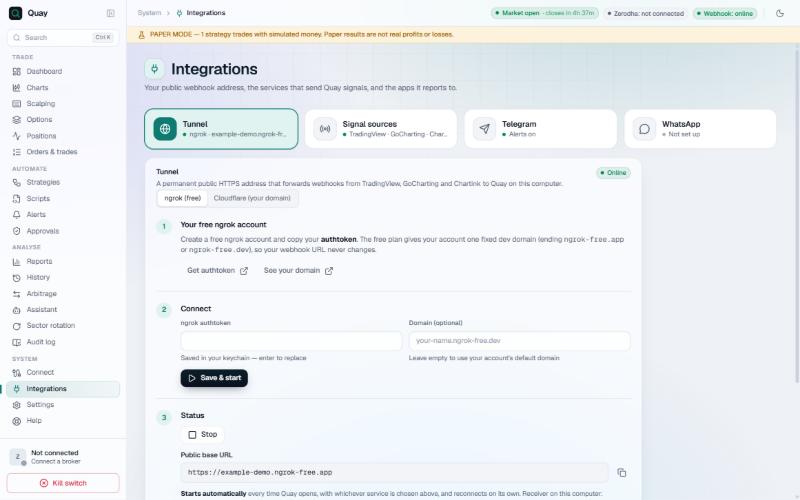
Tunnel (your public webhook address)
- ngrok (free): paste your authtoken, leave Domain empty to use your free fixed domain → Save & start → wait for Online.
- Cloudflare (your domain): create a tunnel in Cloudflare and route a hostname (e.g. hooks.yourdomain.com) to
127.0.0.1:47321. In Vyuh: Download cloudflared, paste the token and hostname → Save & start. - The tunnel starts with Vyuh and reconnects by itself.
- Protection:
- optionally accept alerts only from TradingView's IP addresses;
- limits of 10 alerts a second and 60 a minute per strategy;
- a request limit for each sender (none for TradingView's own addresses), so junk sent to a wrong URL can't hold up your real alerts;
- an address is blocked for 24 h after 10 wrong keys. This PC, TradingView's addresses and addresses passed on by the tunnel are never blocked automatically.
Signal sources
- Pick a strategy, then TradingView, GoCharting or Chartink.
- Copy the message with the key (Chartink: a URL per action, with Chartink's own key).
- Test webhook sends a test through the public URL with a one-time token. New key invalidates the old one at once.
Telegram
- Create a bot with @BotFather and paste its token.
- Message your bot, then press Find my chat.
- Pick the categories: Trades, Errors, Risk, Connection.
- Optionally turn on "Answer bot commands", for a private chat with your bot only (see section 9).
A Meta Business app with WhatsApp, an approved Utility template with one variable, and a permanent token. Enter the access token, phone number ID, the number to send to, the template and its language. Meta charges per message.
Settings
System → Settings
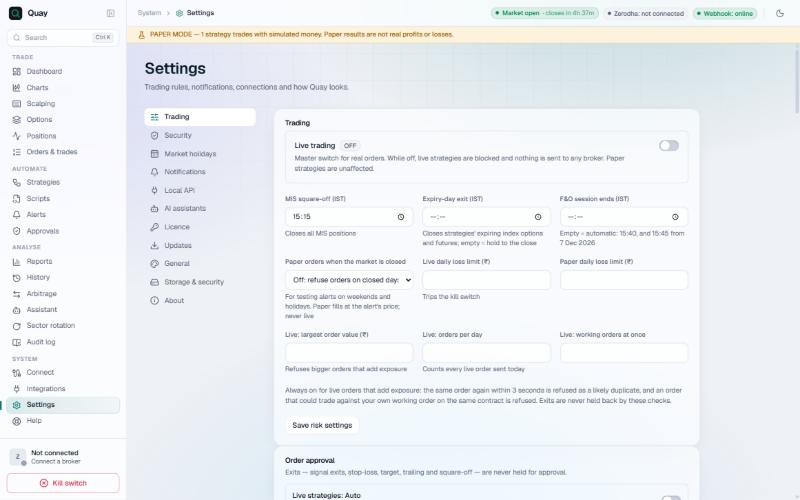
| Section | What's there |
|---|---|
| Trading |
Live trading master switch (off by default, confirmed, audited); off blocks only new live entries. Times: MIS square-off (15:15 for NSE and BSE; MCX at 23:00, also on NSE holidays when MCX trades; none for Delta crypto by default); expiry-day exit (15:30, for index contracts); F&O session end (automatic: 15:40, then 15:45 from 7 Dec 2026). Paper orders when the market is closed (off). Limits: live and paper daily loss limits (trip the kill switch); live largest order value, orders per day, working orders at once. Type amounts as 1,000, 1,00,000 or ₹ 5,000; a typo stops the save and names the field.Order approval (automatic or semi-automatic, per mode); sandbox capital and Reset sandbox; freeze limits (large orders, exits included, go in whole-lot slices below the limit); SPAN margin file. |
| Security | App password; authenticator code (2-step); Lock now. Turning the authenticator on needs the app password; Replace needs the app password and the current code. A setup not confirmed within 10 minutes expires |
| Market holidays | NSE holidays (2026 built in); add or import next year's each December |
| Notifications | Windows notifications by category; Telegram and WhatsApp are set up in Integrations |
| Local API | On/off, Copy key, New key, port 47322, Allow orders, Python SDK, AmiBroker and Excel snippets |
| AI assistants | Assistant permissions and order limits; your saved preferences; MCP clients for Claude Desktop, Claude Code and Cursor (127.0.0.1:47323), each with its own token |
| Licence | Your Vyuh account: sign in or out, 2-step sign-in, password reset by email; paper trading and exits always work |
| Updates | Signed updates, checked every 6 h. When a new version is ready, a desktop notification appears and a banner shows at the top of Vyuh with Install now and Later (Later lasts until the next launch or a newer version). It's installed only when you choose and Vyuh is idle: it waits while any exchange Vyuh holds positions or orders on is open (MCX evenings and NSE holidays included). There is one version of Vyuh, and every copy updates to it |
| General, About | Appearance, accent colour, launch at login; Setup wizard → Open the wizard. About: version, terms and open-source notices |
| Storage & security | Database and log folders; Database encryption state, Export recovery key, Restore with recovery key |
Settings: licence checks
System → Settings → Licence
The licence decides only whether new live entries can start. Paper trading and orders that only reduce a position never need it; Scalping's Reverse does.
- At start: Vyuh checks the licence from its own records before any entry can fire; new live entries start once that passes.
- Server checks: a check that passed within the last 2 hours stands through later failures. When the licence server doesn't answer, Vyuh asks again after 1, 5 and 15 minutes, then every 30. Settings → Licence shows "Offline · locks in N h".
- Ended or can't be checked: only new live entries stop. A safety view keeps your open positions with Exit and Close all, working orders with Cancel, the kill switch and broker sign-in.
- Offline keys: one the server revokes stops working at the next check, after signing out too.
- The clock: turning it back doesn't revive an expired key, as Vyuh checks against Zerodha's and Dhan's own times. A clock more than 5 minutes off is corrected for. If it can't be, Vyuh says "This computer's clock is N minutes off. Set it right (Windows: Settings → Time → Sync now)."
Help
System → Help
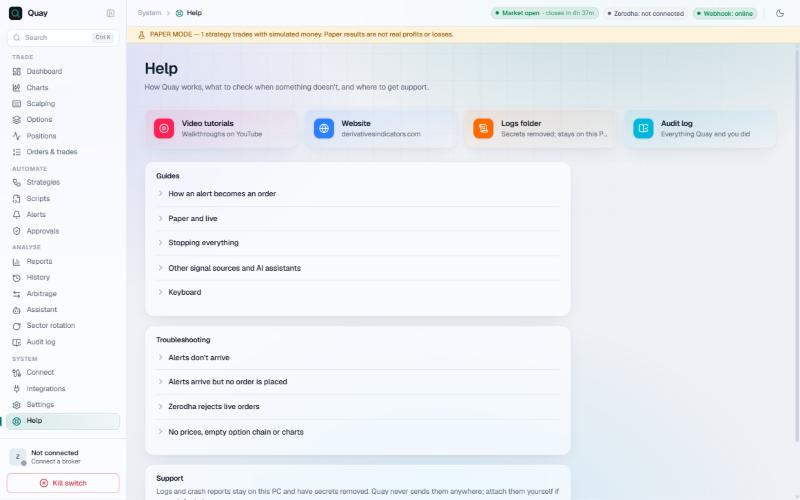
- Tiles: video tutorials, website, Logs folder (secrets removed, kept on this PC), Audit log.
- Guides: how an alert becomes an order, paper and live, stopping everything, other signal sources and AI assistants, the keyboard.
- Troubleshooting: alerts don't arrive, alerts arrive but no order, Zerodha rejects live orders, no prices.
- Support: open the logs folder and crash reports (both stay on this PC; attach them yourself if you ask for help).
Part 4: Reference
Brokers: one for data, another for trading
Vyuh keeps three things apart: the default account (manual orders and funds), each strategy's account (its live orders), and the market data account (prices).
| What | Comes from | Set in |
|---|---|---|
| Live prices, the instrument list, Charts, Options chain, Arbitrage, History downloads | The Prices from account; the default account if you leave it | Connect → Market data |
| Orders from Charts, Scalping, Positions, the Assistant and the Local API; funds and margin | The default account | Connect → Make default |
| Each strategy's live orders | The strategy's account | Strategies → Broker account |
Exits always go to the account that holds the position, even if you have changed the default account or the strategy's account since. Dialogs and notes name the account an order will use, such as "your Dhan account" with its client ID.
There is no limit on accounts, and a broker can have several (your own and a family member's, say). More than one Zerodha account: the first is set up in the Zerodha (Kite Connect) card; for each further one, choose Add account → Zerodha, create its own Kite developer app with the same redirect URL (http://127.0.0.1:5170/kite/callback), save that app's API key and secret in the new row and sign in from there. Each app needs Zerodha's paid Connect plan for live prices.
"Broker 1 for data, broker 2 for trading"
- Add both accounts in Connect and sign in to both.
- Make broker 2 the default, so manual and assistant orders go there too.
- Under Market data, set Prices from = broker 1 and press Save.
Vyuh uses one common symbol format for every broker, so prices match across them. Option chains and contracts are kept per broker, so switching Prices from doesn't cause "invalid token". Broker 2 must still have its instrument list loaded (Refresh instruments) and your static IP registered.
A backup feed
- Under Market data, set Backup feed to a third account (or the trading account) and save. None is set until you choose one.
- When the main feed sends nothing for 30 s in market hours (counted from 09:15, not from a pre-market sign-in), or its session ends, prices move to the backup. You get an alert, and a red PRICES FROM BACKUP banner shows the account and the time.
- Press Switch back once the main account is fine again; Vyuh then releases the backup account's feed, so prices don't come in twice. Orders are never moved: they always go to your trading accounts.
Alert messages Vyuh understands
| Field (case-insensitive) | Values |
|---|---|
key / secret | The strategy's key, or put it in the URL as ?key= |
action / side / signal | buy, sell, exit, test (also long, short, close, flat, exit_all) |
symbol / ticker | e.g. NIFTY, INFY, NIFTY1! (with Symbol mapping) |
exchange | Default NSE |
price / close | The alert's price: used for LIMIT entries without a live price, paper fills, and the slippage report |
qty | With "Quantity from the alert": lots or units, never above the strategy's lots |
position / market_position | long, short, flat: wins over action |
id / order_id | Used for duplicate detection |
ts / time / timenow | Older than 60 s = stale |
Bare text works too: BUY, SELL, CLOSE LONG: Normal Exit, CLOSE SHORT: Trailing Profit, EXIT ALL. These use the strategy's Underlying (when the alert names none), with the key in the webhook URL, as always.
Message mapping (Signal sources, step 3) lets any indicator's own words drive a strategy. Each row is a text, how it matches (Exactly, Starts with, Contains) and the signal it means: Buy, Sell, Close long, Close short, Exit all, or Ignore (recorded, never traded). Vyuh matches the message's first line, ignoring case, emoji and symbols; for a JSON message with no action it reads its text or message field, so a Telegram-style alert like {"chat_id": …, "text": "🟢 BUY NIFTY … CMP: 24512"} works as it is. The symbol is the word after the signal (else the strategy's Underlying) and the price the number after CMP: or PRICE:. A message that matches no row, or rows with different signals, is refused and shown in Alerts. Reset to defaults gives BUY, SELL, CLOSE LONG, CLOSE SHORT and EXIT ALL.
Replies: 202 accepted, 200 test_ok, 200 duplicate, 401 wrong key, or rejected with a reason.
Other sources
| Source | How |
|---|---|
| GoCharting | One alert per action, e.g. {"action":"buy","symbol":"NIFTY","exchange":"NSE"} (the key is in the webhook URL) |
| Chartink | https://<host>/c/<id>?key=…&action=buy; each stock becomes an NSE cash signal; more than 25 stocks is refused |
| AmiBroker, Excel, n8n, Sheets, MT5 | See section 10 |
Safety rules and limits
| Rule | Where |
|---|---|
| Live trading master switch, off by default. Off stops new live entries only (see below) | Settings → Trading |
| New strategies switched off and in paper | Strategies |
| Kill switch: no new entries for the day, working orders cancelled, positions squared off, live and paper, even with Live trading off or no broker signed in. It lists anything it couldn't cancel or close, so you can do it at your broker | Sidebar; Dashboard → Safety to reset (asks first); Telegram /kill |
| Daily loss limits (live, paper, per strategy) trip the kill switch. They count today's P&L: positions carried from earlier days count from the previous close, not their entry price | Settings → Trading; strategy form |
| Largest order value, orders per day, working orders at once (live). Day orders from earlier days don't count as working | Settings → Trading |
| The same live order within 3 s, or one that could trade against your own working order, is refused. Slices of one split order, and one alert sent to two strategies or accounts, are not duplicates. Live entries from all strategies pass the limits one at a time, so daily caps and this guard always hold; an entry against your own working exit is refused: "your exit on this contract is still working" | Always on |
| Automated entries are LIMIT; live market orders are protected limits | Engine |
| Live orders paced at 8 a second | Engine |
| Semi-automatic approval of entries, per mode | Settings → Trading |
| Exits are never blocked or held for approval | Always |
| Holidays: no new entries; exits work | Settings → Market holidays |
| Freeze limits: large orders, exits and the kill switch's square-off go in whole-lot slices below the limit | Settings → Trading |
| Backup price feed when the main feed is silent for 30 s, with a red banner; orders stay on the trading accounts | Connect → Market data |
| Python scripts can run isolated: no file or internet access beyond their own folder and Vyuh's API | Scripts → Python strategies |
| Append-only, hash-chained audit log | Audit log |
| Secrets only in Windows Credential Manager; masked in logs and alerts | Always |
| Database, its log and backups encrypted (SQLCipher); key only in Windows Credential Manager; recovery key for a lost key | Always on; Settings → Storage & security |
Exits, as they work
- Live trading off blocks only new entries. Orders that reduce or protect an open live position still go to the broker: exits, stop-loss, target, trailing, time exits, MIS square-off, the kill switch's square-off, cancels, and changes that only reduce. A change that would add risk (more quantity, or a price that trades at once on an order that doesn't only reduce) is refused.
- For a position above the freeze limit, no stop-loss order is placed at the broker: Vyuh watches that stop itself, and a warning says so.
- Vyuh never sends an exit twice. It counts its own working exit orders, after a restart too, also at brokers that don't echo Vyuh's order tag (Paytm Money, Samco, Sahi, Kotak Neo, HDFC Securities). When a stop is hit, a resting exit of Vyuh's is re-priced to a limit that trades at once, or cancelled and replaced once the broker confirms the cancel.
- An exit that is skipped or stuck raises a warning; it never fails silently.
- At every broker, an order whose sending times out, or whose reply can't be read, is looked up up to three times over about four seconds. It is never sent again unless the broker clearly doesn't have it; otherwise you're told: "Check the broker's order book before placing it again." TWAP and iceberg executors stop on a slice whose outcome is unknown.
- A broker stop-loss Vyuh can't tell about. When Vyuh can't tell whether its broker stop-loss for a position was placed, it looks it up first. Your own actions (the kill switch, Close All, a close button) go at once, with a warning that the broker's stop-loss may also fire, so check the order book. Vyuh's automatic exits (stop, target, trailing, time exit, MIS square-off, expiry-day exit, daily loss) wait up to 60 s for an answer, then go anyway with a loud alert, Telegram included. Selling a bought option is the exception: Vyuh keeps waiting and alerts once a minute, because a double exit there would leave a naked short.
Nothing is dropped
- An exit held up by a stop-loss change, or by another exit of the same position under way, is owed. It is retried every 5 s until the position is flat, and messages say "it is closed once that one finishes".
- A kill switch that is on keeps squaring off whatever in its scope is still open, every 5 s while that market is open, until flat or reset, after a restart too. A kill you trip stays yours after a restart, so its square-offs still go at once.
- When Vyuh follows up an exit, your own working close orders that would fill now (market orders, or limits at or through the price) count as cover, so it closes only the rest.
- A rejected exit is retried after 5 s, then 30 s. After three rejections Vyuh stops and alerts: "<account> rejected Vyuh's exit of X three times: <reason>. Close it at your broker."
Stop-loss and re-entry limits, as they work
- "Re-entries after stop-loss" counts a strategy's stop-loss exits per day, trailing-stop and breakeven exits included, and each leg a basket stop closes. New entries are refused once the count is above the setting: 0 means no entry after the first stop. It resets daily.
- Winning trades don't reset it, and exits on a signal, a time or the basket target don't count. There is no rule that stops after N losing trades in a row.
Troubleshooting
Alerts don't arrive
- Integrations → Tunnel must be Online; press Test webhook.
- The alert's URL must be the strategy's, with its current key. Copy it again after New key.
- "TradingView IPs only" refuses other senders; check the blocked addresses for a 24 h ban.
- TradingView needs a paid plan and 2-step sign-in. Alerts older than 60 s are stale, so check the PC's clock.
The alert arrived but no order was placed
- Ask the Assistant "will my <strategy> alert trade?": it checks everything below and says what to change.
- Alerts shows why: strategy off, outside the entry window, kill switch, trade limit, holiday, live trading off, unknown symbol, already in position (an entry order still working counts), awaiting approval, engine busy.
- Orders & trades → Decisions shows Vyuh's refusals: risk limits, duplicate within 3 s, self-trade, sandbox capital (paper), no licence for live entries.
- For option legs: "no underlying price" or "no live price" means the feed isn't signed in, or the strategy was switched on too late. Switch it on a few minutes before 09:15.
The broker rejects live orders
- The session ended (Connect shows Session ended … · sign in again), or the IP isn't your registered static IP (Connect → Static IP → Check this computer's public IP).
- Margin or RMS: the broker's message is on the order. Protected limits can stay unfilled in fast markets.
- Zerodha's refusals are named plainly, such as "your Kite Connect app's plan doesn't allow this"; an IP refusal is recognised exactly.
No prices, empty option chain or charts
- Zerodha needs the Connect plan and today's sign-in; Dhan needs its Data API. Prices flow only while Vyuh runs.
- "No live feed, using the alert's price" on a position means there's no live price for it.
- Zerodha sign-in stuck on "Waiting…": set the Kite app's redirect URL exactly as Connect shows it, press Cancel, and sign in again.
- With a separate Prices from account, that account must be signed in and have its own data plan. Connect → Market data shows which account prices come from.
- A Zerodha or Dhan feed that goes quiet on a dead connection is reconnected within about 40 s. Retries wait 1 s, rising to 30 s. Once the session has ended, the feed stops retrying and you get one notice to sign in again.
- A full feed: a Zerodha account's feed carries up to 3,000 contracts, a Dhan account's 5,000. When it's full, contracts that only screens use make room: positions, strategies, working orders and waiting entries come first, and one notice names what couldn't be added. If Dhan reports too many instruments, Vyuh drops the newest ones nothing needs and names them once.
- Contracts a closed screen used (option chain, OI profile, strike picker, builder, chart) leave the feed after about 10 minutes. Positions, strategies, working orders, waiting entries, alerts, open charts and Scalping keep theirs. Reopening a screen brings its prices back within seconds.
Red "PRICES FROM BACKUP" banner
The main feed was silent for 30 s in market hours, or its session ended. Sign in to it again, then press Switch back.
"Vyuh's database is locked"
This computer has no key for the encrypted database (new Windows profile, reinstall, copied data folder). Nothing runs until it opens: manage positions at your broker, and enter your saved recovery key. If Settings says the database isn't encrypted, the conversion didn't finish; it works as before and Vyuh retries at each start.
Vyuh stops at the sign-in screen
Vyuh couldn't check your access for 48 hours (no internet), your session ended (30 days without a refresh, or a device reset), or your access expired. Connect to the internet and sign in again; if your access has ended, choose a plan under Get access. Paper trading and exits keep working meanwhile.
Below the sign-in, a safety view keeps open positions (Exit, Close all), working orders (Cancel), the kill switch and broker sign-in. If Vyuh says the computer's clock is off, set it right. See Settings: licence checks.
"Live" still says PAPER
Changing Mode only edits the form. Press Save, and the badge turns LIVE. Live trading must also be on in Settings → Trading.
The window stops responding to clicks
Vyuh puts this right by itself. If it doesn't, press F5 or Ctrl+R, or use the tray icon → Reload screen. Only the screen reloads: the engine, feeds and orders keep running. The right-click menu with Copy and Paste shows only in text boxes and on selected text.
Keyboard shortcuts and files
| Keys | Where | Does |
|---|---|---|
| Ctrl+K | Anywhere | Command palette: jump to any screen |
| F5 / Ctrl+R | Anywhere | Reload the screen; the engine, feeds and orders keep running |
| ↑ ↓ → ←, F6 F7 | Scalping (One-Click on) | Buy call, sell call, buy put, sell put; close all, cancel all orders. B S R and + − for one instrument and lots (rebindable) |
| Alt+1…9, Esc, typing | Charts | Pick a chart, leave a tool or restore a maximised chart, symbol search |
| Arrow keys | Options | Switch tabs; step strikes in the drill-down |
| Enter / Shift+Enter | Assistant | Send / new line |
Addresses and ports (this PC only)
| Webhook receiver | 127.0.0.1:47321 (the tunnel forwards to it) |
| Local API | 127.0.0.1:47322 |
| MCP for AI apps | 127.0.0.1:47323 |
| Broker sign-in redirects | 127.0.0.1:5170–5192, one per broker, shown on each account |
Files
| Data folder | In your Windows user profile (database, logs, backups, assistant log); Help → Open logs folder opens it |
| Forgot the app password | Close Vyuh, create an empty reset-password file in the data folder, start Vyuh |
| Stop the assistant from ordering | Create a file named assistant-stop in the data folder |
| Exports | A Vyuh folder in your Downloads |
| Trade journals | journals in the data folder, a Markdown file per day; a second export the same day makes a new file |
| Database recovery key | Settings → Storage & security → Export recovery key; keep it away from this computer |
Vyuh is a tool that carries out your own rules. Trading in equities, futures and options carries substantial risk of loss. Paper or past results don't guarantee future results. Nothing in Vyuh or in this guide is investment advice.